2D Lights Studio
Global illumination for 2D in URP: soft shadows, bounced light, glowing sprites and coloured glass, solved every frame, with baking for weak devices. For painted HD art and for pixel art.
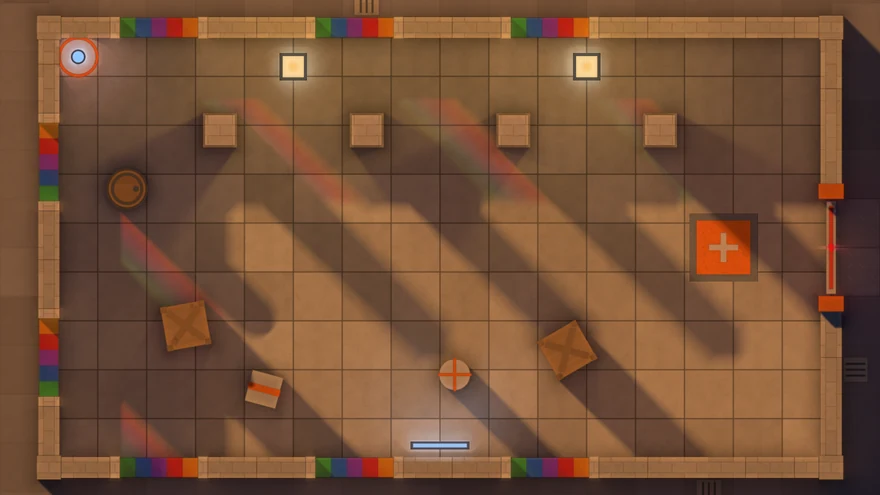
Quick start
- Open Tools > 2D Lights Studio > Studio Window.
- On the Setup tab press Make It Glow. It says first what it will do: add the 2D Lights Studio feature to your renderer, add a light where the camera looks, and add occluders to the objects that already have a collider or a Shadow Caster 2D. One Undo takes it all back.
- Move the light about in the Scene view. Add a Studio Occluder to any sprite that should cast a shadow, and a Studio Light wherever you want light.
- For the mood of the whole scene, open the Looks tab and apply one, or add a Volume with the Studio Look and set Ambient, Sky, Bounce and Exposure yourself.
Nothing else is needed: your sprites keep their materials. To see it at work, open 4ssets/2D Lights Studio/Demo/LightLab/LightLab.unity and press Play.
Workflow: import to build
The order that works for a new game or for one that already has its art. Each step names the section that has the details.
| Step | What you do | Where |
|---|---|---|
| 1. Set up | Import the package into a URP project and press Make It Glow in Studio Window. It adds the Studio Feature to the renderer your camera uses, a first light, and occluders on what already has a collider or a Shadow Caster 2D. In a scene lit by Unity's Light 2D the Doctor offers Convert to 2D Lights Studio. | Quick start, Studio Window |
| 2. Say how the game is seen | In the Studio Look choose Camera: Top-down, Three-quarter or Side, and View: HD for painted art, Pixel Art for one value of light per game pixel. A Starter Kit on the Setup tab does both and places a few lamps. | HD and Pixel Art, Views |
| 3. Mark what blocks light | A Studio Occluder on walls and props (one on a Tilemap Renderer covers the whole tilemap), a Studio Glass on what colours light, a Studio Surface on standing art that should be lit as a face. GameObject > 2D Lights Studio gives the selected objects any of them in one press. | Occluders, Glass, Surfaces |
| 4. Place the light | Studio Lights for the lamps whose shadows matter, Studio Emitters on sprites and particles that glow, a Directional light for the sun; GameObject > 2D Lights Studio has ready-made ones (Torch, Lantern, Neon Tube and more). For shadows of many small things use a Studio Drop Shadow, which traces nothing. | Lights, Emitters, Drop Shadow |
| 5. Set the mood | A Volume with the Studio Look: Ambient, Sky, Bounce, Exposure, Haze, Contact Shade. Apply one of the six moods and change it, blend two Looks with a Look Transition, or let a Studio Day Night turn the sun and the sky. | Look, moods, day and night |
| 6. Use the light in the game | Studio Probe for how much light falls somewhere and which lamps reach it, Studio Sight for what a character sees, Reveal for sprites that show only in the light, Studio Unlit for what must stay readable. | Scripting, Sight, Unlit |
| 7. Choose how it is put on the picture | Screen needs no material changes. Materials adds normal maps and light per sprite: convert your materials with one button, or use the sub graph in your own Shader Graphs. | Compose modes, Shader Graph |
| 8. Check and tune | The Doctor tab lists what is wrong with a fix beside each line; the Cost tab shows what each part of the light takes; the Debug views show the scene as the light sees it. Pick a Quality level, or leave it on Auto. Put a Studio Zone round each closed room of a large level. | Doctor, Quality, Performance |
| 9. Bake for weak devices | A Studio Bake Area stores the sky, the bounce, the emitters and the still lights as compressed textures. Hybrid keeps the lamps that move live on top of the bake; Baked draws nothing live. | Baking |
| 10. Build | Nothing to add by hand: the Studio Feature holds its shaders, so they go into the build with the renderer. Start phones and browsers from Low or Auto, and test on the weakest device you ship for. | Quality, Limitations |
Requirements
| What | Needed |
|---|---|
| Unity | 6000.0 or newer. Made in 6000.0.85f1; the same tests and test scenes also pass in 6000.3.12f1 and 6000.6.7f1. |
| Render pipeline | URP 17 or newer, with the 2D Renderer or the Universal Renderer. Render Graph, and Compatibility Mode on the URP versions that still have it. |
| Camera | Orthographic. A perspective camera is left exactly as it is. |
| Graphics device | One that renders to floating-point textures, as Unity's own 2D lights need. Where a device cannot, 2D Lights Studio switches itself off, the picture is drawn fully lit, and StudioFeature.IsSupported is false. |
| Other pipelines | In a project without URP the package compiles to nothing and raises no errors; it does nothing there. One warning in the Console says so, once each time the editor is opened, and names the package to install. |
The Tilemap and Physics 2D modules, Sprite Shape and 2D Animation are all optional: 2D Lights Studio uses them when they are installed and compiles without them.
How it works
Every frame 2D Lights Studio draws what gives light and what blocks it into a light map: a texture that covers the camera's view and a margin round it, on a grid fixed in the world, so the light does not crawl when the camera moves. From the blockers it builds a distance field. Light then reaches the map two ways:
- The shared cascades carry everything soft in one solve, whose cost does not grow with the number of sources: bounced light, sky light, emitters, and lights with Traced Shadows switched off. Each source adds only one small draw of its own.
- Traced lights are added on top, each with rays of its own through the distance field. That gives them shadows that start sharp at the object and widen with distance, their own height, cone, cookie, layers and glass. A light is traced by default.
Almost nothing is carried from frame to frame. Move a lamp and its shadows are right in that same frame, with no trail behind them. Three things lean on the frame before, each by one frame only: the bounce reads last frame's light; a traced light with eight soft rays or more sends half of them each frame and blends the two halves, so a moving lamp's penumbra settles over two frames; and the far light (the larger cascades) is solved every other frame, so light from far off follows something that moves a frame later. A scene where nothing changes for a second keeps the light it solved (Reuse Still Frames) and costs almost nothing.
The finished map is then put on the picture by one of two compose modes. Whichever it is, light stops at the edge of the sprite itself, not at the edge of a light map texel: the occluders are drawn once more at screen resolution to find that edge.
HD and Pixel Art
The Look's View chooses how the light is drawn.
| View | What it does | Use it for |
|---|---|---|
| HD | Smooth light and smooth shadow edges at any zoom; the light map is a fraction of the screen's resolution, enlarged with a smooth filter. | Painted and high-resolution art, visual novels, anything not built on a pixel grid. |
| Pixel Art | Every game pixel gets one value of light. The light can be drawn in a number of steps, with a fixed dither between them. The grid stays put in the world, so nothing shimmers as the camera moves. | Pixel art. Set Pixels Per Unit to your sprites'; a Pixel Perfect Camera on the camera sets it for you. |
Top-down, three-quarter, side
2D Lights Studio solves light in the scene's plane, and every Height in it (an occluder's, a light's, an emitter's) is a distance out of that plane, toward the camera. The Look's Camera says what the plane is, and the inspectors name the settings to match.
| Camera | The plane is | Height means | For |
|---|---|---|---|
| Top-down | The ground, seen from straight above. | How far up from the ground. | Top-down games, roguelikes, strategy maps. The default; scenes made before it look as they did. |
| Three-quarter | The ground, seen from above at an angle (Camera Angle, 45 by default). Objects are drawn standing up the screen. | How far up from the ground. | Zelda-like adventures, farming and life sims, RPG towns, oblique isometric-style art. |
| Side | The back wall. | Depth: how far in front of the wall. Lift becomes Gap. | Platformers, metroidvanias, beat 'em ups, side-on interiors. |
Three-quarter. An object drawn standing up the screen meets the ground only along its bottom: set its occluder's Shape to Footprint (the bottom band of the sprite, Footprint Depth tall), Collider (the box your game already puts at its foot) or Profile (the footprint with every column of the sprite as tall as it is drawn, so a tree's trunk stands and its crown hangs, and the shadow has the silhouette's shape). Auto, the default, takes the footprint in this view. A light's Anchor is Flame by default: put the light where its flame is drawn and it lights the ground under it, Height times cos(Camera Angle) lower. An object standing up the screen (Footprint or Profile) is lit as it stands: its front face, from its foot up to its Height times cos(Camera Angle), takes the light in front of its foot, so a lamp behind a crate leaves its front dark; above that the picture is its top, lit from above, so a lamp behind a bench and higher than its seat lights the seat. Walls drawn as one upright face: give them a Studio Surface set to Face.
Side. Nothing changes in how light is solved: a lamp with more Depth than a crate lights the crate's front and throws its shadow on the wall beside it, softer and further off the closer the lamp comes to the crate's depth; a lamp at Depth 0 travels along the wall and shadows run on without end. The sky lights from above only: twice as strong straight up, as strong along the horizon, nothing from below, so an open point keeps the sky it had and a cave lit through a shaft stays dark in its corners. The strip of floor before the wall takes a Studio Surface set to Floor.
The Looks folder ships three camera profiles, Camera Top-down, Camera Three-quarter and Camera Side, each a Studio Look that sets only Camera. Put one on a global Volume above the mood's (priority 1), and any mood suits any view; the starter kits do that for you. A bake goes out of date when the camera changes.
Lights
Add Studio Light from Component > 2D Lights Studio. Drag its dots in the Scene view to size it.
Type and mode
- Point is a lamp at the object's position. Directional is parallel light over the whole scene, like the sun, travelling along the object's up axis; Elevation raises it above the scene so that shadows shorten by each object's Height.
- Soft casts shadows from the whole glowing shape, so they soften with its size. Precise casts them from the centre and keeps them crisp; Shadow Softness then widens them by a fixed amount.
- Traced Shadows (Soft mode) gives the light rays of its own. Off, the light travels through the shared cascades: far less cost per light, blurrier shadows, and none of the per-light settings below.
Shape
Circle, Ellipse, Rectangle, Line or Polygon, turning with the object. The pool of light and, in Soft mode, the soft edges of shadows follow the shape: a strip lamp casts a wide penumbra across its length and a narrow one along it. Range is measured from the shape's outline.
Polygon takes any outline of three to sixteen Points, which may turn inward: a window of odd shape, a pool of lava, a shop front. Edit the points in the Scene view: drag a corner to move it, Shift-click a side to add a corner there, Ctrl-click a corner to remove it. Ground in a hollow of the outline is lit as ground inside it. For a light in the shape of a sprite, use an emitter.
Cone, cookie, height
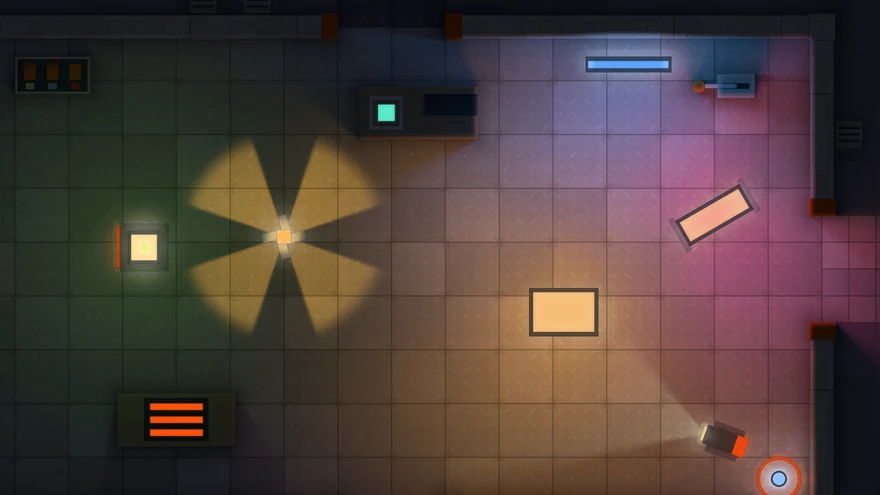
- Spot Angle below 360 makes a cone round the object's up axis; Spot Softness fades its edge. The lamp itself still shows as a bright spot whichever way the cone points; untick Show Source to leave the beam alone, as from a lamp out of sight. Do not shrink Radius to hide it: a smaller lamp gives less light.
- Cookie is a texture the light shines through, turning with the object. A Point light stretches it over its range; a Directional light repeats it.
- Height lifts the light above the scene. Objects lower than it, by their occluder's Height, cast short shadows and have their tops lit.
Stamps: light with no shadows
A room in a daylight scene. The sky does not come into a room whose walls are closed by occluders, but the sun does: it comes from above. To keep it out, draw the room's floor (and what stands in the room) on a Sorting Layer or at an Order in Layer of its own, and set the sun's Lights Only to leave that layer or order out: the sun then lights the ground outside and not the floor inside, where the room's own lamps do. For an area with no layer of its own, a Studio Stamp set to Darken dims whatever lies under it.
Studio Stamp draws a picture straight into the light map once the light is solved: light or shade with no shadows and no trace, for the cost of a quad. Use it for many small lights (sparks, embers, fireflies), for headlights and beams on weak devices, and for pools of light and darkness painted by hand.
- Blend: Add puts light in; Darken takes the light under it toward Color (black takes it away, Strength says how far); Raise lifts the light to Color only where it is dimmer, so a lit window never doubles the lamp beside it.
- Texture is the picture; empty, a soft round pool. Use Sprite Renderer takes the sprite on the object instead, with its flip, colour and animation.
- Particles stamps the picture at every live particle of a Particle System, at the particle's size, colour and turn: a burst of sparks that lights the floor for almost nothing.
A stamp lights sprites as any light does. It casts no shadow, and what it adds bounces from the next frame like the rest of the light. It is never baked.
Shadow Length
Shadow Length on a traced light ends its shadows that far behind what casts them, in world units, fading out over the last quarter; 0 keeps them without end. For a stylised look, or a low lamp in a big hall whose shadows would otherwise cross the whole floor. The sun takes it too: short noon shadows that do not depend on the objects' heights.
Negative lights
Negative makes a light take light away: a pool of darkness with the same shape, range and shadows. It is an art tool for a corner that should stay gloomy or a creature that dims the room. It never makes a place darker than the Look's Ambient.
Flicker
Studio Flicker beside a light or an emitter varies its brightness: Flame, Pulse, Drift, Faulty, Cycle or Strobe. Cycle plays a Brightness curve and a Tint gradient over Period seconds, round and round: a lighthouse, a disco, a slow sunset in a window. Strobe flashes, on for On Share of each flash. In Step puts every flicker that has it on one clock, so a string of lamps pulses as one; Phase moves a light along its pattern, for a wave down a row of lamps. A Cycle's colour reaches the light through colorScale, which your own code can set as well; the light's Color is never changed.
It leaves Intensity alone and writes intensityScale, which your own code can use the same way. Lights flicker out of step with each other by themselves.
Layers
Under Layers, a light can fall only on chosen Sorting Layers and Orders in Layer, and take its shadows only from chosen ones. Each different pair of shadow lists costs a distance field of its own, up to four.
Emitters
Studio Emitter makes a renderer give light in its own shape: lava, a neon sign, a window, a mushroom, a particle system. Its light travels through the shared cascades, so it is soft, and all emitters share one solve: each adds only the draw of its own shape.
- Sprite Colors: the whole sprite glows in its own colours, each part in its own. A shop sign of four colours lights the wall beside each letter in that letter's colour; a television lights the room in the colours of its picture, and changes with it if the sprite is animated.
- Emission Map: only the bright areas of the sprite's secondary texture named
_EmissionMapglow. The rest of the sprite stays what it was, so with a Studio Occluder beside it a wall blocks light and glows through its windows. - Flat Color: the whole sprite glows in one colour.
To make lights of sprites already in the scene, select them and choose GameObject > 2D Lights Studio > Make Selected Sprites Glow, or right-click a Sprite Renderer's header and choose Glow In Its Own Colors (2D Lights Studio). Each gets an emitter on Sprite Colors; one Undo takes them away.
On a particle system each particle glows by its alpha, so a particle that fades out dims its light with it. Small things light little: a small emitter needs a much higher Intensity than a large one for the same reach.
A glowing sprite only a few texels of the light map across, a bullet or a firefly, is drawn as one patch of its mean colour, so its light stays steady as it moves instead of flickering with where it stands on the map. So is the glowing part of a light with Traced Shadows off when its Radius is that small. This is not done for particles, which are drawn all at once: the light of a few particles each that small can shimmer as they move. Make them larger, use more of them, or raise Quality.
A glow inside its own object, eyes in a statue's head or coals in a brazier's bowl, is hidden by the occluders round it. List them in the emitter's Ignore Occluders (Add Its Object takes every occluder of the prefab it is part of): its light then passes through them to the floor, while they are lit as before and still stop every other light. A Studio Light has the same list, for a lamp inside its housing. The Doctor points out an emitter hidden this way and fixes it in one click.
Without a renderer an emitter glows in Color over the area of the Collider 2D on the same object. That is a light of any outline: draw a Polygon Collider 2D round the lava or the window in a painted background and add the emitter to it. With no collider either, it glows over the outline of a Shadow Caster 2D on the object. Source and Alpha Cutoff are not used then.
Shared light and groups
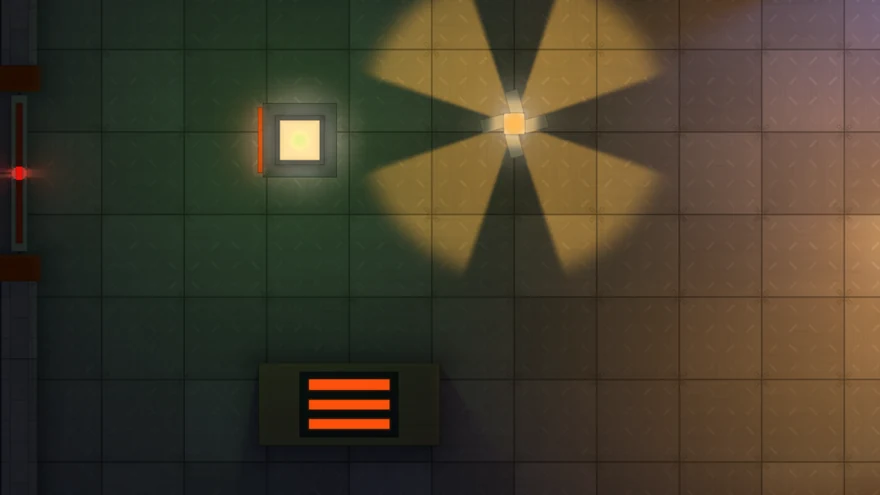
Lights are solved in one of three ways, and each way has its own shadow settings:
- Traced: a light with Traced Shadows, Precise, a cone, a cookie, a Directional light. Each draws its own shadows with its own settings: Shadow Strength, Shadow Color, Shadow Quality and its layer filters. Each costs a pass over its range.
- Shared: every Studio Emitter, every Soft light without Traced Shadows, bounced and sky light, solved together in the shared cascades. One pass for all of them, whatever their number; their shadows share the Shared Light settings on the Studio Feature: Shadow Strength and Shadow Color.
- A pass of its own: a group, or an emitter solved alone. Each costs about as much as the shared light again, every frame.
Groups. Add a Studio Group to a light or an emitter and give it a Group Profile (press New on the component, or choose Assets > Create > 2D Lights Studio > Group Profile). Every light and emitter with the same profile is solved together in one pass of its own, with the profile's Shadow Strength, Shadow Color, Quality, Lights Only and Shadows Only From. GameObject > 2D Lights Studio > Group Selected puts the selected lights and emitters into one new group. A group of many traced lights costs one pass instead of one each; its shadows are as soft as the shared light's, and a light in it has no Precise mode or traced sharpness. Only a Point light shining all round, with no cookie and not negative, can join a group; others keep their own trace. Without a profile, or without the component, a light or emitter works on its own as before.
Emitters Each Alone. The Studio Feature's Emitters switch: Together (the default) keeps every emitter without a group in the shared light; Each Alone solves each one in a pass of its own, with the shadow settings in its own inspector. The Doctor notes when the passes of their own add up, and the Scene view overlay counts them.
Occluders
Studio Occluder makes a renderer block light in the shape of what it draws, by alpha. It works on sprites, tilemaps (one draw for the whole map), Sprite Shapes and sprites rigged with 2D Animation, whose shadows follow the bones, and on meshes: a Mesh Renderer or a Skinned Mesh Renderer blocks light in the shape it covers in the scene's plane, cut by its material's texture alpha. With Shape set to Collider, the shadow takes the 2D collider's shape, however faded the sprite is drawn.
- Height is how tall the object stands. A light raised above it shines over it; where objects overlap, the tallest owns the place.
- Lift hangs the object above the ground: it then takes the span from Lift up to Lift + Height (the inspector draws it). See Lifted objects below.
- Shape is what blocks light: Sprite, the whole picture; Collider, its Collider 2D though it has a renderer; Footprint, the bottom band of the sprite, Footprint Depth tall; Profile, the footprint with each column as tall as it is drawn. Auto is the footprint in a three-quarter view and the sprite in the others. See Top-down, three-quarter, side.
- Light Depth scales how far light reaches into the sprite from its lit side. At 0 the whole sprite stays in shadow, to the pixel.
- Surface Light scales how strongly light shows on it, and Bounce Tint colours the light it passes on.
Close to a light 2D Lights Studio also needs the object's outline as lines: to tell whether a lamp stands inside it, and to keep the shadows of straight edges steady while the camera zooms. A sprite whose mesh follows its picture gives that outline itself. A sprite on a four-corner mesh, which is every Full Rect sprite and every sprite smaller than 32 pixels, takes it from its physics shape, so leave Generate Physics Shape ticked in the sprite's import settings, as it is by default. Without it such a sprite counts as its whole rectangle near a light: its shadow turns square when a lamp comes close, and a lamp in an empty corner of the picture goes out.
Without a renderer an occluder blocks light over the area of the Collider 2D on the same object: a box, circle, capsule, polygon or composite collider. Use it when the walls are part of one painted background and only their colliders say where they are. The picture under that area is then lit as a solid, by Light Depth and Surface Light. An Edge Collider 2D, or a composite set to outlines, has no area and blocks nothing.
With no collider either an occluder takes the outline drawn on the Shadow Caster 2D of the same object, the path of its Edit Shape tool. The caster need not be switched on: a scene moved over from Unity's 2D lights keeps the outlines already drawn for it, and they cast 2D Lights Studio shadows as they are.
Lifted objects. A lamp on a chain, a beam, a bridge, a canopy or the crown of a tree hangs above the ground: give its occluder a Lift, how far its underside is above the ground, and a Height, how thick it is. Light then passes under it as well as over it, so its shadow lies off to the side, the farther the lower the light; a torch under a chandelier lights the floor right under it. Seen from above only its top shows, and a light lights that top only from above it. A light within its span lights the side facing it, as deep as its Light Depth. A Studio Sight sees under it, and an eye at its height does not see past it. Its shadow from traced and directional lights is exact; the shared cascades (bounced and sky light) are stopped by it only where the Look's Sky Height lies within its span. A scene with no lifted objects pays nothing for the feature: their passes run only while there is one. Put a lifted object on a Sorting Layer or Order in Layer above what stands under it; the Doctor notes one drawn under such an object.
The Setup tab of Studio Window offers to add occluders to every object that already has a renderer and a solid Collider2D or a Shadow Caster 2D, and to every Shadow Caster 2D on an object with nothing drawn. Colliders with nothing drawn are left to you: many of them are triggers and level bounds that should cast no shadow.
Glass
Studio Glass lets light through a renderer in its colour. With Sprite Colors the light takes the colours of the sprite along its way through it, so a stained-glass window throws its picture on the floor; with Flat Color it takes one colour, and a grey only dims it, like smoked glass. Density runs from clear to letting through only the glass's own colour. A window in a wall colours the whole of its beam, the soft edges that spread wider than the window included: no light gets there but through the glass.
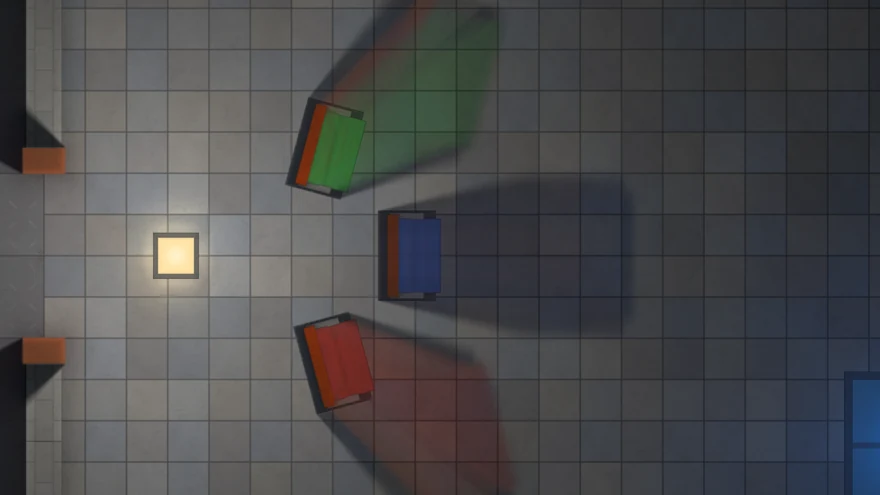
Placement says how the glass lies. Upright (the default) stands in the scene's plane, as a window in a wall seen from above: light crossing it takes its colours along its whole way through it, so a deep pane mixes them. It stands as tall as its Height: light that passes above it, as a high sun over a low window does, is not coloured, so a window's coloured patch ends where the shadow of its top would. Lying lies flat at its Height: a skylight, a canopy of coloured glass, a window drawn face up. A traced light higher than the glass colours what is under it with the colour where the line to the light crosses that height, so the glass's picture lies on the floor, stretched as a shadow is, and moves as the light moves; light from under it passes uncoloured. Up to four different heights of lying glass take part at once.
Glass out of view still colours the light that reaches the view through it: past the light map's edge a coarse copy of the glass round the view takes over, as the far field does for shadows, so a window that leaves the screen keeps throwing its colours on the floor in sight. Out there its picture is softer.
Unlit
Studio Unlit keeps what an object and its children draw out of the light: a foreground, text in the world, a health bar, an effect that glows by itself, an enemy's eyes. It is shown as drawn, neither darkened nor lit. One component on the root of a group is enough; Amount below 1 lets part of the light through. It works in both compose modes: in Screen for any material, in Materials for the Studio Sprite-Lit material (a property block tells it). A sprite with another material in the Materials mode is lit or not by its own shader.
Surfaces
Studio Surface tells 2D Lights Studio that what a renderer draws does not lie in the scene's plane.
- Face, in a three-quarter view: an upright face turned to the viewer, the front of a wall, a crate, a house. It stands on the line along its bottom and takes the light there, but only light that comes from in front of it: a lamp behind the wall leaves its face dark, a lamp in front lights it.
- Floor, in a side view: the floor in front of the back wall, meeting it along the top of what the renderer draws. It takes the light along that line, from above: a lamp over the floor lights it, one below it does not.
Line Offset moves the line up or down when the picture has a margin or a lip. It works in both compose modes: in Screen for any material, in Materials for the Studio Sprite-Lit material and the Studio GI sub graph, which read it from a property block; a normal map on the sprite turns with the surface. A Surface shades by where the light comes from, so the light's directions are kept while one is in the scene, as they are for normal maps. A scene with none pays nothing.
Sight
Studio Sight on a character shows the player only what that character sees. Everything its eye cannot reach, behind a wall, past its Range or outside its Field Of View, is dimmed by the Unseen colour; what it does reach stays exactly as it is lit. The walls in the way are the scene's Studio Occluders, and the edge of the view is as soft as a traced light's shadow, set by Edge Softness. It is for a game seen from above: a roguelike's dungeon, a stealth level, a house explored room by room.
- Field Of View under 360 looks along the object's up axis, like a light's cone. Near Radius is always seen, whichever way the character looks.
- Wall Depth is how far into a wall the view reaches from the face that is seen: the wall shows, and what lies behind it does not.
- Eye Height lets the eye see over low things, as a light's Height lets it shine over them.
- Unseen is what the hidden part of the picture is multiplied by. Black hides it; a dark, cool colour leaves the shape of the level readable.
- Remember Explored keeps what the eye has seen: a place seen once and out of sight now is dimmed only to Explored, so the level the player has walked stays on screen, as on a map. The memory covers Explored Area (the level's bounds, in world units) at Explored Detail texels per unit.
From code: IsExplored(point) and ExploredFraction answer from a copy read back from the GPU a few times a second; ResetExplored() forgets it all; SaveExplored() gives bytes for a save game and LoadExplored(bytes) puts them back.
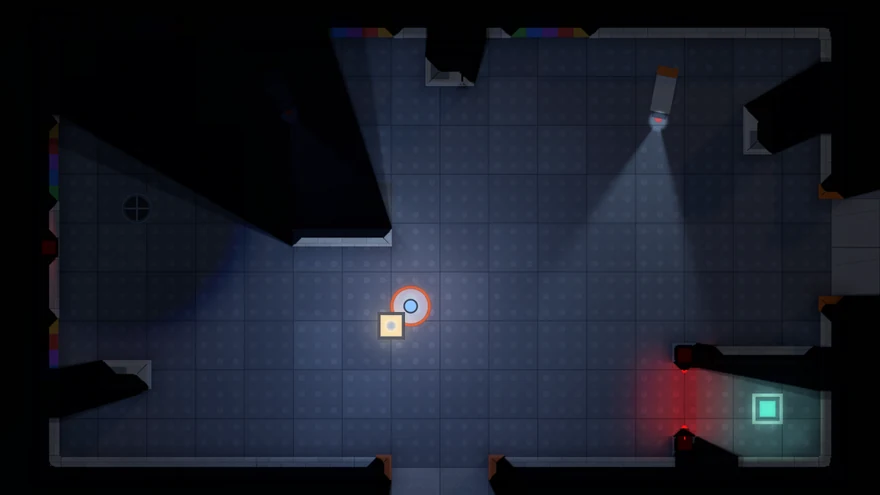
It works in both compose modes, and Haze is dimmed with the rest. In Screen compose even a Studio Unlit is dimmed where it is not seen; in Materials compose only sprites with the Studio Sprite-Lit material are. Several Sights in a scene see together, for a party or two players. The Scene view is never dimmed: a level is not built by what its hero sees. With no Sight in the scene nothing is drawn or stored for it.
The picture is dimmed, but a game usually wants more: enemies out of view should not be drawn at all. Ask the eye:
var sight = hero.GetComponent<StudioSight>();
enemy.GetComponent<SpriteRenderer>().enabled = sight.Sees(enemy.transform.position);
Sees is worked out from the occluders' shapes at once, without waiting for a frame. A shader of your own can read the view too: the global texture _LsSight holds it, 0 to 1, laid out like the light map.
Look, moods, day and night
The Studio Look is a Volume component, so it blends between volumes like any other. It holds what belongs to the whole scene: View, Exposure, Contrast, Ambient (the light every surface keeps), Sky (light from every direction that nothing blocks: a closed room stays dark), Bounce, and the pixel art and normal map settings.
Moods
Six moods ship as Volume profiles in 4ssets/2D Lights Studio/Looks: Cave, Torchlit Dungeon, Neon City (Pixel Art), Forest Dawn, Underwater, Painted Evening (HD). The Looks tab of Studio Window applies one to the scene. To make your own, duplicate one and change it.
Changing the look from code
// Fade from whatever is on screen to another look over two seconds.
StudioLookTransition.To(caveProfile, 2f);

// Later: fade back to the scene's own volumes (its zones and blends decide the look again).
StudioLookTransition.Release(2f);
A look set with To sits over the scene's own volumes until the next To or until Release; IsHolding says whether it still does, IsChanging whether a fade is running.
Ready-made lights
GameObject > 2D Lights Studio makes a light that already looks like what it is called: Torch, Lantern, Campfire, Neon Tube, Window Light, Sunbeam, Screen Glow, Magic Orb, Moonlight. Each is an ordinary Studio Light, some with a Studio Flicker beside it, set up for the job; start from the nearest one and change what you like. Right-click an object in the Hierarchy to make the light its child. Making one adds that one object and changes nothing else, and one Undo takes it away.
Animating a light
A Studio Light is animated like any other component: record its Intensity, Range, Color, Spot Angle or any other setting in the Animation window, or put it on a Timeline track, and each frame is solved with the values of that moment. Nothing has to be told that they changed. Two lights of the library come ready animated, Lightning and Dying Lamp: each carries an Animator that plays a clip from the package's Animations folder, driving Intensity. Open the clips to see how it is done, or drop them on a Timeline for a cutscene. A Studio Flicker multiplies whatever Intensity the clip sets, so the two work together.
Starter kits
Under the checklist on the Setup tab of Studio Window are kits for kinds of games: Top-down Dungeon, Three-quarter RPG, Platformer Cave, Neon City, Painted Evening, Visual Novel. Add puts the kit's mood on the scene's Look volume (or makes the volume), sets the kit's camera view on a volume of its own (see Top-down, three-quarter, side), and places a few of the ready-made lights where the camera looks, under one object named after the kit. It is a first picture to change, not a level: move the lights onto your torches and windows, delete what does not fit. One Undo takes the lights and the mood back.
Haze: light in the air
Give the Look's Haze a colour and the air itself glows wherever light passes through it: the beam from a doorway, the shaft through a window, the halo round a lantern. It is drawn from the light map, so every shadow cuts through it, and it lies over the lit picture in either compose mode. A dim grey is plenty; a tinted Haze makes fog, dust or smoke of the scene's mood. What a Studio Unlit keeps out of the light stays clear of it. Black is clear air, and then nothing is drawn for it.
Contact Shade: objects that stand on the ground
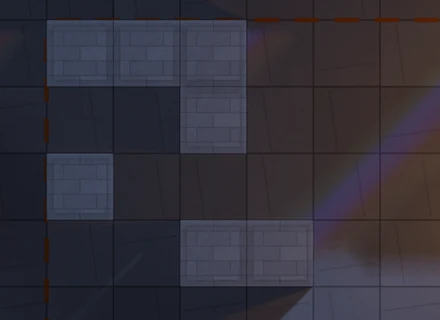
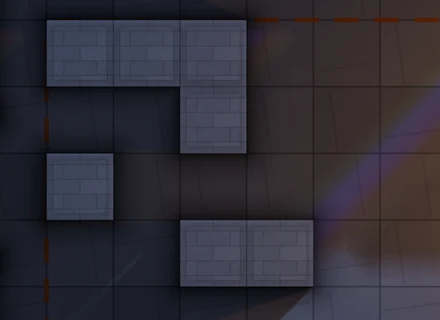
Raise the Look's Contact Shade and the ground darkens at the foot of everything that blocks light, most in corners, fading out over Contact Reach world units. Seen from above, walls, pillars and furniture then stand on the floor instead of lying flat on it. It shades the ground only, never the objects, in either compose mode; in the Pixel Art view it follows the same steps as the light. It is the picture's, not the light's: a bake does not hold it, and probes and light sensors do not read it. At 0 nothing is drawn or stored for it.
Day and night
Studio Day Night runs Sky, Ambient and Exposure over a day by gradients, and can drive a Directional Studio Light as the sun: its colour, its strength, and one turn round the sky. Scrub Time in the editor to see any hour.
Compose modes
| Compose | How | Choose it when |
|---|---|---|
| Screen | The finished picture is multiplied by the light before post-processing. No material changes; works with lit and unlit sprite materials. | Almost always. It is the default. |
| Materials | Sprites that use the Studio Sprite-Lit material read the light themselves; everything else shows unlit. | You want normal maps on sprites, or exact control over what is lit. |
In Screen compose, Unity's own 2D lights also light the picture and 2D Lights Studio multiplies on top. Keep one white Global Light 2D at intensity 1, or none; the Doctor warns about the rest.
Converting materials
Tools > 2D Lights Studio > Material Converter opens a window that lists what the open scenes are drawn with, material by material, and says what converting does with each before it does it. Convert moves the renderers of the open scenes or of the selection from URP's sprite materials to Studio Sprite-Lit, and Revert puts back exactly the materials that were there: each renderer keeps a note of them. A project material gets a copy beside it with its settings kept. Every press is one Undo step. If Compose is still Screen, the window says so and offers the switch.
Normal maps
Switch Normal Maps on the feature on and set Compose to Materials. A sprite's secondary texture named _NormalMap then shades it by where the light comes from. The Look's Normal Height sets how steeply light rakes across the relief.
Reveal: sprites that show by the light

The Studio Sprite-Lit material has two sliders under Reveal by Light: Hidden At Brightness and Shown At Brightness. Left at the same value they do nothing. Set Hidden below Shown, say 0.1 and 0.3, and the sprite fades in only where its place is lit: secret writing under a carried lamp, footprints in a torch's pool. Set Hidden above Shown and it shows only in the dark: eyes in a cave that go out when the lantern comes near. Each pixel is judged by itself, so a sprite half in a beam is half there. It works in either compose mode, because the sprite reads the light map for it whoever lights the picture. Brightness runs from 0 in the dark toward 1 and leaves out the Ambient, which is no light falling on the place.
Give such a sprite a material of its own, and no Studio Occluder: a hidden sprite would still cast its shadow. For Shader Graph the Studio Brightness sub graph gives the same number, and StudioBrightness in LightsStudio.hlsl gives it to a hand-written shader.
Quality
The feature's Quality is one choice, not a set of algorithm switches: Low, Mobile, Medium, High (the default) and Ultra. Custom opens the settings one by one. Auto starts at a level guessed from the device and steps down one level each time frames have run late for two seconds, against Application.targetFrameRate when the game sets one and otherwise 60 frames a second (the display's rate under vSync, when that is lower); it never steps back up by itself, so the picture does not flip back and forth. One frame held up for seconds, as when a scene loads, counts as a single late frame. StudioFeature.AutoQuality gives the level it is at.
A lower level gives up the light map's resolution and the number of rays, so shadows are blurrier and small things coarser; it does not give up what keeps light on its side of a thin wall or what keeps shadow edges free of stairs. In Custom, Fixed Cascades below 2 lets the light of the shared cascades (emitters, and lights with Traced Shadows off) slip through thin walls, and Smooth Upscale off shows stairs on hard edges: both save a little on the weakest devices.
Zoomed-in cameras
The light map follows the screen: at Resolution 0.5 it has half the screen's pixels across, whatever the camera shows. A camera zoomed right in would then solve a few world units in millions of texels, finer than light ever needs, and the frame rate would fall the closer it came. So each level also has a Max Texels Per Unit: Low 24, Mobile 32, Medium 48, High 64, Ultra 128. Past it the texels stop shrinking; the light is the same at the same place, and a camera zoomed in costs less than one far out, not more. Light is smooth and Smooth Upscale enlarges it cleanly, so the difference is hard to find even on hard shadow edges.
To fix the detail for a scene or an area instead, set Light Map Density on a Studio Look (HD view): that many texels per world unit at every zoom, never finer than the screen's pixels. The light then looks and costs the same however the camera moves. A camera far out pays for every texel it shows, so pick the density for the widest view the scene has. 0 follows the screen.
The Quality tab of Studio Window shows the size of the light map and the memory it takes at the Game view's current size.
Baking
For weak devices the soft, shared part of the light can be solved once in the editor.
- Add a Studio Bake Area over the level and size it. Tick Baked on the lights that never move or change.
- Press Bake on the area, or Bake All in Studio Window. The light, and where it comes from for normal maps, is stored as compressed textures in a folder beside the scene.
- Set Lighting on the feature to Hybrid or Baked.
Three ways to light a scene, chosen on the feature (Lighting) and switched at any time, from code too, without baking again:
Inside a baked area, with Lighting on Hybrid or Baked, the bake holds what the Studio Look said of the sky and the bounced light when it was made: Sky, Bounce, Sky Height, Surface Light, Surface Falloff and Penetration. Changing them there shows nothing until you bake again (the area's inspector says the bake is out of date) or switch Lighting to Realtime. Exposure, Contrast, Ambient, Haze and Contact Shade stay live in every Lighting.
| Lighting | What is baked | Shadows of what moves | Cost |
|---|---|---|---|
| Realtime | Nothing: everything can move and change. | From every light. | The full solve every frame. |
| Hybrid | The sky, the bounce, emitters marked Baked (the default) and the lights marked Baked that live in the cascades (no Traced Shadows). Traced lights marked Baked are drawn live, their shadows kept while nothing moves near them. | From every light: a character walking past a baked lamp casts its shadow. | Far less than Realtime: no cascades, and still lamps read their shadows instead of tracing them. |
| Baked | The sky, the bounce, emitters marked Baked and every light marked Baked. | Only from lights not marked Baked: a baked lamp's light is a picture, and what moves in front of it casts nothing. | The least: the baked light is read, only lights not marked Baked are traced. |
An emitter that moves or changes, such as a character's glowing gear or a carried crystal, should have Baked off: it is then left out of the bake and lit live in Hybrid and Baked as well, so it keeps glowing wherever it goes.
The same for occluders and glass that move: a crate the player pushes, a door, a pane on a stand. With Baked on (the default) the bake keeps their shadow, or their colour, where they stood; turn it off and they are left out of the bake, so nothing stays behind when they move, while they still block or colour every light solved live. Moving them then puts no bake out of date. The Doctor lists what has a Rigidbody 2D that is not Static and is still baked, and turns Baked off for all of it in one press.
In both baked lightings lights not marked Baked stay live: they are traced over the baked light with shadows of their own, so a carried torch still casts the shadow of a pillar. Hybrid looks as Realtime does where nothing moves; what moves does not dim the baked bounce, which is soft enough for that to be hard to see (Contact Shade darkens where objects meet). Where no baked area covers the camera, 2D Lights Studio solves in real time by itself. A bake made before 2D Lights Studio had Hybrid lighting serves Baked, and Hybrid once baked again.
The area's inspector shows whether the bake is out of date: it keeps a fingerprint of everything the bake depends on. From code and from the command line:
StudioBaker.Bake(area);       // one area
StudioBaker.BakeAll();        // every area of the open scenes

Unity -batchmode -projectPath ... -openScene Assets/Level.unity
-executeMethod FourSsets.LightsStudio.Editor.StudioBaker.BakeFromCommandLine -quit-nographics. A new serialized setting in a later version of 2D Lights Studio puts existing bakes out of date once: bake again after updating. All of an area's chunks load with the scene. To load baked light through Addressables, load the StudioBakedData asset and assign it to the area's Data.Studio Window and Doctor
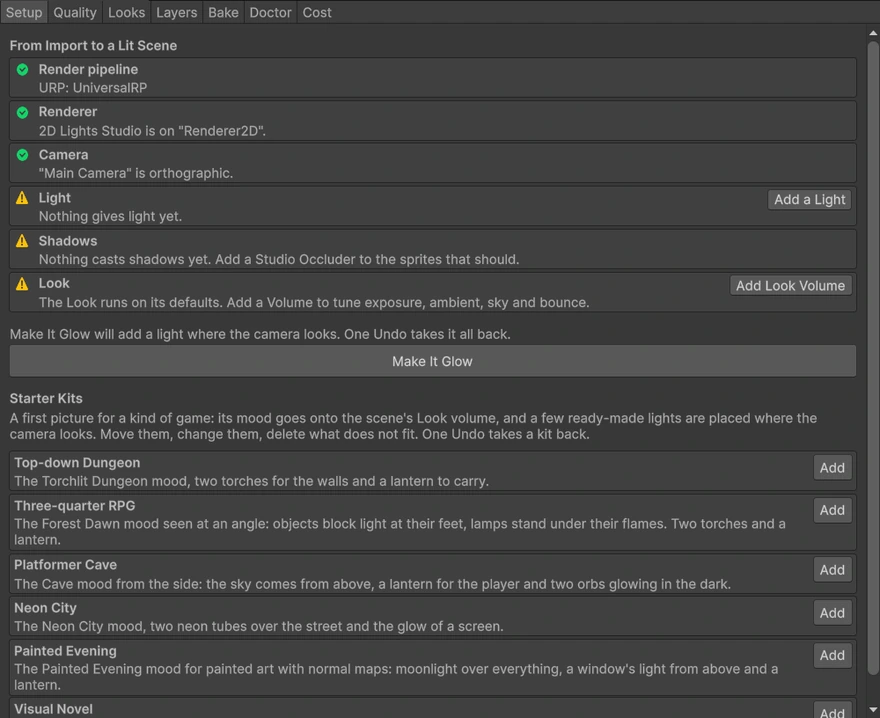
- Setup lists what a project needs and does each step at a press, or all of it with Make It Glow. Under the list are the starter kits: a mood and a few lights for a kind of game.
- Doctor reads the project and the open scenes and lists what keeps 2D Lights Studio from working or looking right, with Show, Fix and Fix All. It only reads until you press a button.
- Looks applies a mood. Bake holds the scene's bake areas. Quality shows the level and the light map's size and memory.
- Layers is one grid for many lights at once: which Sorting Layers they light and which cast their shadows. It edits every light in the open scenes, or the lights you have selected, and writes their own Lights Only and Shadows Only From. A light that leaves a layer out is traced by itself, which costs more than the shared cascades.
- Cost measures what 2D Lights Studio adds to a frame of the scene's camera, here and now, and what each light adds to that: the way to find the one dear light. It measures this editor on this machine at the Game view's size, and nothing else: build and measure on the device you ship for.
2D Lights Studio changes nothing in your project by itself: not on import, not when a window opens. Every change is a button, says what it will do, and can be undone.
Coming from Unity 2D lights
In a scene lit by Light 2D the Doctor offers Convert to 2D Lights Studio. Each point light gets a Studio Light on the same object with its colour, brightness, reach, cone, shadow setting and target layers, and the Light 2D is switched off, not removed. A global light gives its colour to the Look's Ambient and is left white at intensity 1, which Lit sprites still need. Freeform and sprite lights stay as they are: a Studio Emitter on a sprite or on a collider gives light of such a shape. It is one Undo, and Fix All never runs it for you. Brightness will not match exactly, since the two solve light differently: treat the result as a starting point.
Debug views
The feature's Debug View, also in the 2D Lights Studio overlay of the Scene view's toolbar, shows one stage of the solve in place of the picture: Light (the finished light without the sprites), Shared Light (what the cascades carry), Emission (what gives light to them), Occluders (what blocks, in the colour it bounces) and Distance Field. Use them to find out why a place is lit the way it is.
The 2D Lights Studio overlay of the Scene view holds the three switches used while lighting a scene: 2D Lights Studio on or off, Debug View, and Quality, with one line of how many lights, occluders and emitters are switched on. They are the renderer feature's own fields, changed with Undo. If the overlay is hidden, open the Scene view's Overlay Menu (the backquote key, or ⋮ > Overlay Menu on the Scene view's tab) and tick 2D Lights Studio.
Shader Graph and your shaders
For the Materials compose mode, your own shaders can read 2D Lights Studio's light.
- Shader Graph: add the Studio GI sub graph (under 2D Lights Studio) and multiply your sprite's colour by its Light output, in a Sprite Unlit or Sprite Custom Lit graph.
- Hand-written shaders: include
LightsStudio.hlslafter URP'sCore.hlsland callStudioGI.Shaders/StudioCustomSprite.shaderis a complete example to copy.
#include "Assets/4ssets/2DLightsStudio/Shaders/LightsStudio.hlsl"

float3 light;
StudioGI_float(positionWS, float4(screenPosition.xy / screenPosition.w, 0, 1), light);
color.rgb *= light;
The function returns 1 in Screen compose, so a sprite is never lit twice.
Scripting
Everything is in the namespace FourSsets.LightsStudio. Every field you see in an inspector is a public field you can set at run time; nothing needs a refresh call.
using FourSsets.LightsStudio;

// A light from code.
var lamp = new GameObject("Lamp").AddComponent<StudioLight>();
lamp.color = Color.cyan;
lamp.range = 6f;
lamp.intensityScale = 0.5f;            // dim it without touching Intensity

// Is the player in shadow?
var probe = player.AddComponent<StudioProbe>();
probe.Updated += p => hidden = p.Brightness < 0.2f;

// The feature of the pipeline in use.
StudioFeature feature = StudioFeature.Find();
feature.quality = StudioQuality.Mobile;
feature.lighting = StudioLighting.Baked;

// Can this device run 2D Lights Studio at all?
if (!StudioFeature.IsSupported) UseMyOwnFlatLook();

// Changed something the light depends on that 2D Lights Studio cannot see (Reuse Still Frames)?
myLavaMaterial.SetTexture("_EmissionMap", brighterLava);
StudioFeature.MarkChanged();
Studio Probe reads the light at its position from the light map of the camera drawn last. Its reading is a frame or a few behind, because the answer comes back from the graphics card without making the game wait; ReadImmediate() waits for it instead. Outside the light map it has no reading.
The probe is also a light sensor, for gameplay with no code: it is lit once its Brightness reaches Lit Above and dark once it falls to Dark Below, and On Lit and On Dark call what you wire to them in the Inspector: open a flower, hide the player from a guard, wake a monster. IsLit gives the same from code. Put as many probes in a scene as the game needs: however many read in a frame, the graphics card is asked once for all of them.
Parameter reference
Every setting of every component, with its default and range. This section is written from the code itself, so it matches what the inspectors show.
Studio Light
A light source.
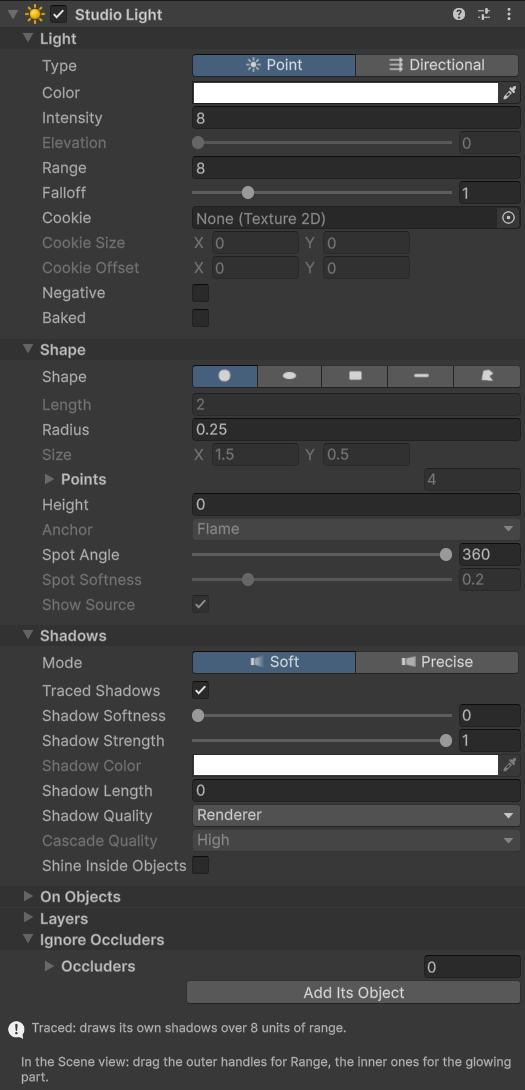
What it costs. A traced light costs a draw over its Range with Shadow Quality rays (2 to 16) in each texel: keep ranges tight. While it stands still its shadows are kept and it costs a read; moving, turning or reshaping it traces again, changing its colour or brightness does not. Traced Shadows off puts it in the shared light, at one small draw. Lights Only, Shadows Only From and Ignore Occluders each give the light a field of its own, about a tenth of a millisecond.
| Setting | Default | Range | What it does |
|---|---|---|---|
| Type | Point | Point: a lamp at this object's position. Directional: parallel rays over the whole scene, like the sun, travelling along this object's up axis, the green arrow. | |
| Mode | Soft | Soft: shadows come from the whole glowing disc and soften with its Radius. Precise: shadows come from the centre and stay crisp. | |
| Color | RGB 1, 1, 1 | Colour of the emitted light. | |
| Intensity | 8 | 0 and up | Brightness of the light. |
| Negative | Off | Takes light away instead of giving it: a pool of darkness with this light's shape, range and shadows, for a corner that should stay gloomy or a creature that dims the room. An art tool; nothing real does this. Never darker than the Look's Ambient. | |
| Baked | Off | A light that never moves or changes, for the bake of a Studio Bake Area. With Lighting Baked it costs nothing at run time and what moves casts no shadow from it; with Hybrid its bounce is baked and, if it traces its shadows, its own light is drawn live with kept shadows, so what moves still casts them. Off, it stays live in every lighting. | |
| Range | 8 | 0.1 and up | World units the light travels before fading out completely. |
| Falloff | 1 | 0.25 to 4 | How brightness drops toward Range. Low values stay bright and end abruptly, high values concentrate the light near the source. |
| Shape | Circle | The outline of the glowing part. The pool of light and, in Soft mode, the soft edges of shadows follow it. It turns with this object. | |
| Radius | 0.25 | 0.01 and up | Radius of the glowing disc in world units, or half the thickness of a Line. A bigger lamp gives more light and, in Soft mode, softer shadows. |
| Size | 1.5, 0.5 | Ellipse and Rectangle: width and height of the glowing part in world units, along this object's right and up axes. | |
| Length | 2 | 0.02 and up | Line: length of the glowing strip in world units, along this object's right axis. |
| Points | four corners of a trapezium | 3 to 16 points | Polygon: the corners of the glowing part in order round its outline, in world units along this object's right and up axes. With fewer than three the light shines as a Circle. |
| Height | 0 | 0 and up | Height of the light above the scene, in world units. Objects lower than it (Studio Occluder: Height) cast short shadows and have their tops lit, by degrees as it rises a quarter of their height past them; one it stands inside no longer hides it. Higher also makes the pool of light flatter. In the side view it is called Depth: how far in front of the back wall. |
| Anchor | Flame | Flame, Ground | Three-quarter view: Flame places the object at the flame as it is drawn, and the light stands on the ground under it, Height times cos(Camera Angle) lower on the screen. Ground places it at the point on the ground. The same in the other views. |
| Spot Angle | 360 | 1 to 360 | Point: the angle of the cone the light shines in, around this object's up axis, the green arrow. 360 shines all round. |
| Spot Softness | 0.2 | 0 to 1 | Point: how much of the cone's half-angle its edge fades over, and never more than the gap left behind the light, so a cone opened to 360 closes smoothly. 0 cuts it hard. |
| Show Source | On | Point with a Spot Angle under 360: shows the glowing part itself as a bright spot, whichever way the cone points. Off, only the cone's light is left: a beam from a lamp out of sight. Radius still sets how much light there is and how soft its shadows are. | |
| Cookie | None | A texture the light shines through, turning with this object. A Point light stretches it over its Range, centred on the light; a Directional light repeats it every Range world units. White passes all the light, black none, colours tint it. | |
| Cookie Size | 0, 0 | 0 and up | The cookie's size in world units, across and along the light's up. 0 keeps the default above. Outside its size a Point light's cookie goes on as its edge: give it a white border to light the rest of the pool, a black one to light only the picture. |
| Cookie Offset | 0, 0 | Where the cookie's middle lies off the light, in world units along the light's right and up: a picture thrown on one place in its pool. | |
| Elevation | 0 | 0 to 85 | Directional: how high the light stands above the scene, in degrees. At 0 it travels in the scene's plane and every object's shadow runs on without end. Higher, shadows shorten by each object's Height (Studio Occluder) and the tops of objects are lit, by degrees over the first ten. |
| Traced Shadows | On | Soft mode: trace this light's shadows on their own, so they start sharp at the object and widen with distance. Costs a little per light. Off, the light goes through the shared cascades: far less cost per light, blurrier shadows, and the settings below do not apply. | |
| Cascade Quality | High | Detail of the shared cascades. The highest quality among the lights that use them applies. Higher costs more. | |
| Shadow Softness | 0 | 0 to 1 | Size of the lamp that casts the shadows, up to a quarter of Range: the shadow edge widens with distance from the object, as with a real lamp. Added to Radius in Soft mode. For a Directional light, how wide the light is in the sky, up to 15 degrees either side. |
| Shadow Strength | 1 | 0 to 1 | How dark this light's shadows are. 0 lets it shine through everything. |
| Ignore Occluders | Empty | Occluders | Occluders this light passes through as if they were not there: the object it sits in, a lantern's frame, a statue's head round its glowing eyes. They are still lit as before, and other light still stops at them. Add Its Object fills the list with the occluders of the object it is part of: its prefab, or itself and the objects above it. |
| Shadow Color | White | Colour | The colour of the light let into this light's shadows, as a Shadow Strength under 1 lets some in: a cool shadow under a warm lamp, a red one under a fire. White keeps the light's own colour. At Strength 1 the shadows are dark whatever this is. |
| Shadow Quality | Renderer | Renderer, Low, Medium, High, Ultra | How many rays trace this light's soft shadows: 2, 4, 8 or 16; Renderer takes the quality level's Shadow Rays. More makes the soft edge smoother and costs more. A crisp shadow (Precise, no Shadow Softness) is one ray whatever this is. |
| Shine Inside Objects | Off | Keep shining once the light's centre is inside an occluder, from its nearest surface. Off, the light goes out as its centre reaches a surface, which is what a lamp carried into a wall should do. | |
| Surface Reach | 0.15 | 0 to 5 | How deep this light reaches into solid objects from their lit surface, in world units. 0 leaves them dark. |
| Surface Strength | 1 | 0 to 2 | How bright this light is on solid objects. 1 is natural, 0 leaves them dark, 2 doubles it. |
| Lights Only | Off | Sorting Layers, Order in Layer | The sprites this light falls on. Off, it lights every sprite. On: the Sorting Layers ticked in the mask (Everything is all of them), and by Order in Layer any, One number, or a Range from one to another, both included. On, the light is traced on its own. |
| Shadows Only From | Off | Sorting Layers, Order in Layer | The sprites that cast this light's shadows; light passes the others. Off, every occluder casts. Chosen as for Lights Only. On, the light is traced on its own. |
Studio Emitter
A renderer that gives light in its own shape.
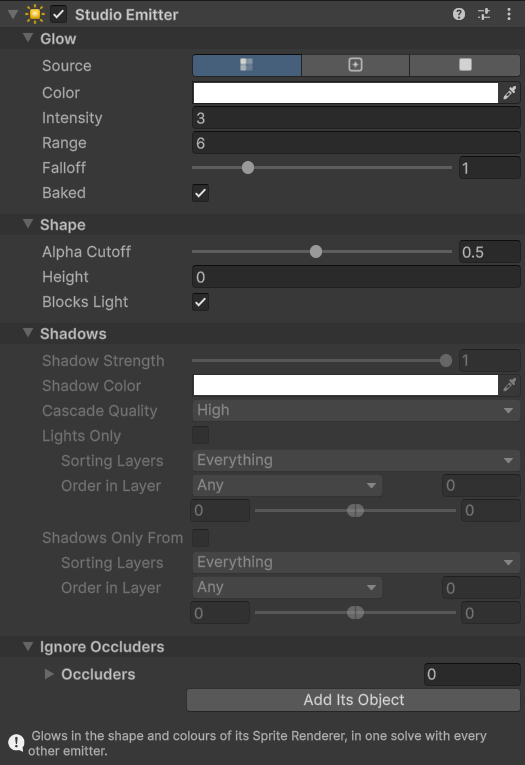
What it costs. In the shared light an emitter costs one small draw, whatever their number. In a Studio Group, or with the feature's Emitters on Each Alone, it is a pass of its own, about the cost of the whole shared light again. A Particle System counts as changing every frame, so the light is solved live while it plays.
| Setting | Default | Range | What it does |
|---|---|---|---|
| Source | Sprite Colors | Sprite Colors: the whole sprite glows in its own colours. Emission Map: only the bright areas of the sprite's secondary texture named _EmissionMap glow, so the rest of the sprite can block light with a Studio Occluder. Flat Color: the whole sprite glows in Color. | |
| Color | RGB 1, 1, 1 | Tints the glow; with Flat Color, the glow's colour. | |
| Intensity | 3 | 0 and up | Brightness of the glow. |
| Range | 6 | 0.1 and up | World units the light travels from the sprite before fading out completely. |
| Falloff | 1 | 0.25 to 4 | How brightness drops toward Range. Low values stay bright and end abruptly, high values concentrate the light near the sprite. |
| Alpha Cutoff | 0.5 | 0.05 to 1 | Sprite alpha at and above this glows. |
| Height | 0 | 0 and up | How tall the glowing object stands above the scene, in world units. At 0 it lies on the ground and other lights pass over it; a light at or below its height is blocked by it, as by an occluder, while Blocks Light is on. |
| Blocks Light | On | On: the glowing object is solid up to its Height, and other light stops at it, traced or through the shared cascades. A light inside it and lower than its Height goes out, as one inside an occluder does (the Doctor points it out). Off: it is only light: other light passes through it and a lamp inside it shines out. Off for a glow that floats or wraps a light: a crystal round its lamp, runes on a hovering ring, a flame. An Occluder on the same object still casts its own shadow. | |
| Cascade Quality | High | Detail of the pass that carries this light. In the shared light the highest quality among the lights and emitters there applies; solved on its own (Emitters Each Alone), this emitter's. Higher costs more. | |
| Ignore Occluders | Empty | Occluders | Occluders this emitter's light passes through as if they were not there: the object it sits in, a lantern's frame, a statue's head round its glowing eyes. They are still lit as before, and other light still stops at them. Add Its Object fills the list with the occluders of the object it is part of: its prefab, or itself and the objects above it. |
| Shadow Strength | 1 | 0 to 1 | Solved on its own (Emitters Each Alone): how dark this emitter's shadows are. In the shared light the feature's Shared Light settings apply, in a group the group's. |
| Shadow Color | White | Colour | Solved on its own: the colour of the light let into this emitter's shadows, as a Shadow Strength under 1 lets some in. |
| Lights Only | Off | Sorting Layers, Order in Layer | Solved on its own: the sprites this emitter's light falls on. |
| Shadows Only From | Off | Sorting Layers, Order in Layer | Solved on its own: the sprites that cast this emitter's shadows. |
Studio Group and Group Profile
The group a light or an emitter is solved in; the profile holds the group's settings, one place for every member.
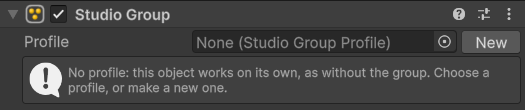
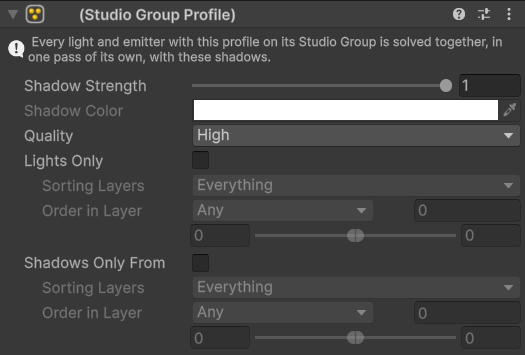
What it costs. Each profile in view is one more pass: it draws the scene, builds a field and solves cascades again. It pays off when it gathers many traced lights into that one pass.
| Setting | Default | Range | What it does |
|---|---|---|---|
| Profile | None | The group this object belongs to. Every light and emitter with the same profile is solved in one pass. None: the object works on its own. | |
| Shadow Strength | 1 | 0 to 1 | How dark the group's shadows are. 0 lets its light shine through everything. |
| Shadow Color | White | Colour | The colour of the group's light let into its shadows, as a Shadow Strength under 1 lets some in. |
| Quality | High | Low, Medium, High, Ultra | Detail of the group's pass. Higher gives tighter shadows and costs more; Low solves it at half resolution. |
| Lights Only | Off | Sorting Layers, Order in Layer | The sprites the group's light falls on. |
| Shadows Only From | Off | Sorting Layers, Order in Layer | The sprites that cast the group's shadows; its light passes the others. |
Studio Occluder
A renderer that blocks light in its own shape.
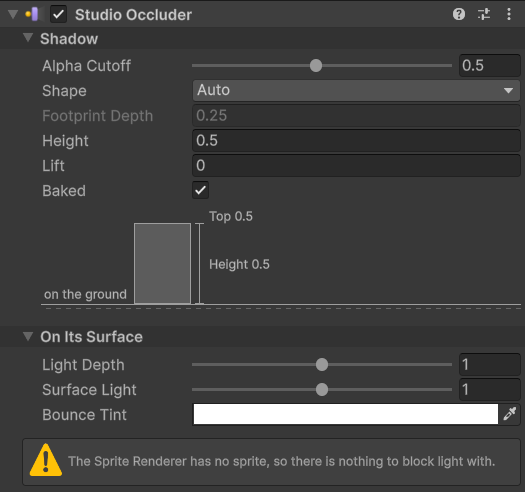
What it costs. An occluder is one draw into the scene's map. One that moves has the distance fields built again that frame and the kept shadows behind it traced again; still ones cost nothing more. Many small occluders across the screen raise the cost of soft traced lights. Lift above 0 switches the scene to the passes that meet lifted objects, which a browser compiles the first time one is in view.
| Setting | Default | Range | What it does |
|---|---|---|---|
| Alpha Cutoff | 0.5 | 0.05 to 1 | Sprite alpha at and above this blocks light. Lower it for soft-edged or semi-transparent sprites that should still cast shadows. |
| Light Depth | 1 | 0 to 2 | Scales how deep light reaches into this sprite: each light's Surface Reach, and the Look's Penetration. 0 keeps the whole sprite in shadow. |
| Surface Light | 1 | 0 to 2 | How strongly light shows on this sprite, relative to the Look's Surface Light. 0 leaves it dark and it bounces nothing. |
| Bounce Tint | RGB 1, 1, 1 | Tints the light this surface bounces back into the scene. | |
| Height | 0.5 | 0 and up | How tall this object is, in world units: from the ground, or with Lift from its underside up. A light higher than its top shines over it: its shadow is short and its top is lit. A light at or below its top is blocked as usual. |
| Lift | 0 | 0 and up | How far the object hangs above the ground, in world units. It then takes the span from Lift to Lift + Height, and light passes under it as well as over it, so its shadow lies off to the side. 0 stands it on the ground. In the side view Height is called Depth and Lift Gap. |
| Shape | Auto | Auto, Sprite, Collider, Footprint, Profile | What blocks light. Auto: the footprint when the Look's Camera is Three-quarter, the sprite anywhere else. Sprite: the whole picture. Collider: the Collider 2D on the object. Footprint: the bottom band of the sprite. Profile: the footprint, each column as tall as it is drawn, Height at the sprite's top. |
| Footprint Depth | 0.25 | 0.01 and up | Footprint and Profile: how tall the band at the bottom of the sprite is, in world units: how deep the object is on the ground, seen at an angle. |
| Baked | On | A thing that stays where it is, for the bake of a Studio Bake Area: its shadows in the baked light are read from the bake. Off for a thing that moves: it is left out of the bake and leaves no shadow behind where it stood; it still blocks every light solved live. |
Studio Glass
A renderer that colours the light passing through it.
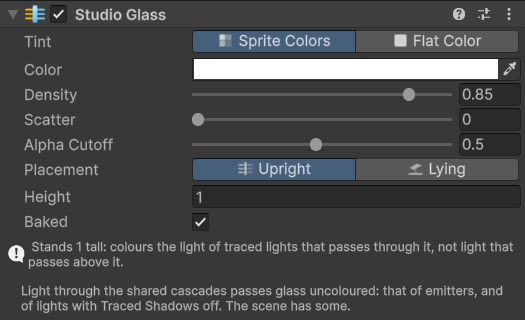
What it costs. A traced light walks through the panes near it; a still light keeps the colour with its shadow, so a still pane by a still lamp costs nothing more. A pane that moves is drawn and walked again. Scatter above 0 reads the pane's picture 25 times where it is drawn.
| Setting | Default | Range | What it does |
|---|---|---|---|
| Tint | Sprite Colors | Sprite Colors: light takes the colours of the sprite where it crosses it, so a stained-glass window throws its picture. Flat Color: one colour for the whole sprite. | |
| Color | RGB 1, 1, 1 | Tints the light further; with Flat Color, the colour the light takes. Grey only dims it, like smoked glass. | |
| Density | 0.85 | 0 to 1 | How strongly the glass colours the light: 0 is clear and changes nothing, 1 lets through only its own colour. |
| Scatter | 0 | 0 to 1 | Frosted glass: blurs the picture the glass throws. 0: sharp, as a stained window throws its picture. 1: an even wash of all its colours. Nothing to blur with Flat Color. |
| Alpha Cutoff | 0.5 | 0.05 to 1 | Sprite alpha at and above this is glass. |
| Placement | Upright | Upright, Lying | Upright: the glass stands in the scene's plane, as a window in a wall seen from above; light takes its colours along the way through it. Lying: it lies flat at Height; a traced light above it throws its picture on what is under it, light under it passes uncoloured. |
| Height | 1 | 0 and up | Upright: how tall the pane stands, in world units; light passing above it is not coloured. Lying: how high the glass lies. Up to four different heights of lying glass take part at once. |
| Baked | On | A pane that stays where it is, for the bake of a Studio Bake Area. Off for glass that moves: it is left out of the bake, so no coloured light stays behind where it stood. |
Studio Unlit
Keeps renderers out of the light, in either compose mode.
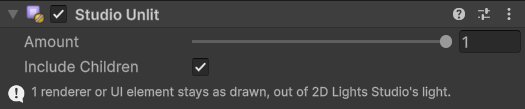
What it costs. One draw of each object it keeps out of the light, into the unlit mask.
| Setting | Default | Range | What it does |
|---|---|---|---|
| Amount | 1 | 0 to 1 | How far this is kept out of the light: 1 shows it exactly as drawn, 0.5 lets half of the light and dark through, 0 lights it like everything else. |
| Include Children | On | Also covers the renderers of every child object, so one component on the root of a foreground or a UI group is enough. |
UI and TextMeshPro. In the Screen compose mode everything the camera draws is lit, so a canvas set to World Space or Screen Space - Camera and any TextMeshPro text are lit like the sprites round them, with no material of their own. A canvas set to Screen Space - Overlay is drawn after the light and is never lit. To keep a health bar, a name tag or a sign readable in the dark, put a Studio Unlit on it or on its canvas: it covers Image, Raw Image and TextMeshPro, each by its own shape. Text (Legacy) is not covered.
Studio Surface
A renderer whose picture stands out of the scene's plane: an upright face or a floor strip.
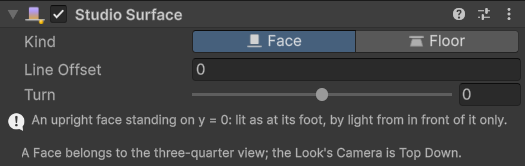
What it costs. Nothing: it only tells the light how the sprite stands.
| Setting | Default | Range | What it does |
|---|---|---|---|
| Kind | Face | Face, Floor | Face: an upright face turned to the viewer in a three-quarter view, standing on the line at the bottom of what it draws. Floor: the floor in front of the back wall in a side view, meeting the wall along the top of what it draws. |
| Line Offset | 0 | Moves the line it stands on (Face: the bottom of what it draws; Floor: its top) up or down, in world units, when the picture has a margin or a lip. | |
| Turn | 0 | -75 to 75 | Face: turns the face to one side, for the sides of an isometric block: the angle its bottom edge runs at on the screen, in degrees. Positive when the edge rises to the right (the face looks down the screen and to the right), negative when it rises to the left. 0: a face turned straight to the viewer. Isometric art drawn 2 to 1: 26.57 and -26.57. A turned face takes its light along its slanted foot, and only from the side it looks to. |
Studio Sight
Dims the picture where a character does not see.
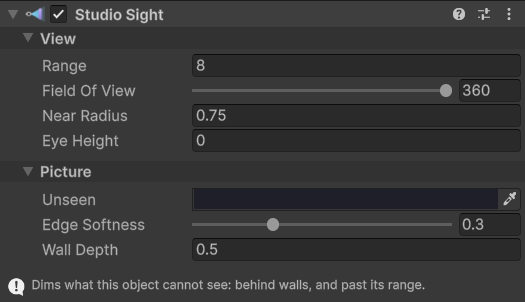
What it costs. A traced pass over its Range: about what a traced light of that range costs.
| Setting | Default | Range | What it does |
|---|---|---|---|
| Range | 8 | 0.1 and up | How far the eye sees, in world units. The view fades out over the last part of it. |
| Field Of View | 360 | 1 to 360 | The angle seen, in degrees, about the object's up axis. 360 sees all round. |
| Near Radius | 0.75 | 0 and up | What is always seen around the eye, whichever way it looks, in world units: a character knows what stands right beside it. |
| Edge Softness | 0.3 | 0 to 1 | How soft the edge of the view is where a wall cuts it. 0 is a hard line. |
| Wall Depth | 0.5 | 0 and up | How far into a wall the view reaches from the face that is seen, in world units: walls show, and what lies behind them does not. |
| Eye Height | 0 | 0 and up | How high the eye is, in world units. Objects lower than this (Studio Occluder: Height) do not block the view, nor do lifted ones above it (Studio Occluder: Lift). |
| Unseen | RGB 0.12, 0.12, 0.16 | What the unseen part of the picture is multiplied by. Black hides it; a dark, cool colour leaves the shape of the level readable. With several Studio Sights in a scene, the first one's colour is used. | |
| Remember Explored | off | Keep what the eye has seen: places seen once and out of sight now are dimmed to Explored, not Unseen. The first Sight with it on is remembered. | |
| Explored | RGB 0.42, 0.42, 0.48 | What explored places out of sight are multiplied by. | |
| Explored Area | -32, -32, 64 x 64 | The part of the world the memory covers, in world units. | |
| Explored Detail | 4 | 1 to 16 | Memory texels per world unit. |
Studio Flicker
Varies the brightness of the light or emitter beside it.
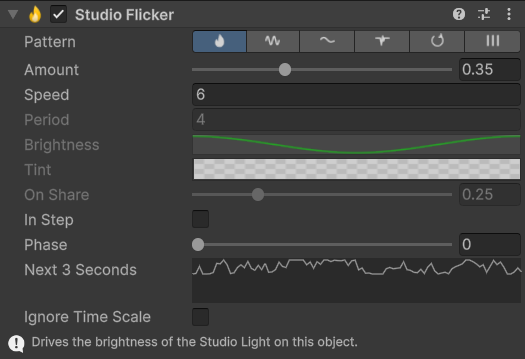
What it costs. Nothing more than the light it drives: brightness and colour change without tracing its shadows again.
| Setting | Default | Range | What it does |
|---|---|---|---|
| Pattern | Flame | Flame: restless, like fire. Pulse: a steady even swing. Drift: a smooth wander with no rhythm. Faulty: mostly on, with sudden short blackouts. | |
| Amount | 0.35 | 0 to 1 | How far the brightness drops at the lowest point: 0 leaves the light steady, 1 takes it down to nothing. |
| Speed | 6 | 0.01 and up | How fast the brightness changes, in swings per second. |
| Ignore Time Scale | Off | Keeps flickering while the game is paused with Time Scale 0. |
Studio Probe
Reads the light at its position.
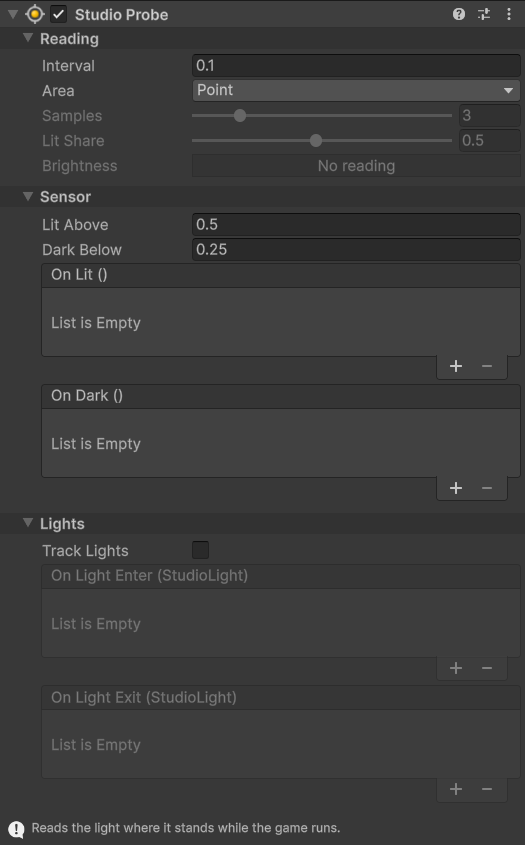
What it costs. One read of the light map each Interval; an Area reads Samples points instead of one. Track Lights adds a test of each light in range at every reading. A longer Interval is the first thing to raise for many probes.
| Setting | Default | Range | What it does |
|---|---|---|---|
| Interval | 0.1 | 0 and up | Seconds between readings while the game runs. 0 reads every frame. |
| Lit Above | 0.5 | 0 and up | The probe counts as lit once its Brightness reaches this. Brightness is 0 in full shadow and around 1 and more in a lamp's pool. |
| Dark Below | 0.25 | 0 and up | The probe counts as dark once its Brightness falls to this. Between the two values it stays what it was, so a reading that hovers at a threshold does not flip it back and forth. |
| On Lit | Empty | Called when the probe becomes lit, and at its first reading if it is lit then. | |
| On Dark | Empty | Called when the probe becomes dark, and at its first reading if it is dark then. | |
| Area | Point | Point reads where the object stands. Bounds reads a grid of points over its renderer or 2D collider: how much of the object is lit (Lit Fraction) and how brightly on average. | |
| Samples | 3 | 2 to 8 | Bounds: points along each side of the grid. |
| Lit Share | 0.5 | 0.05 to 1 | Bounds: the share of the object at Lit Above or brighter for it to count as lit; dark again below three quarters of it. |
| Track Lights | Off | Follows which lights reach the probe: at every reading, the lights whose range and cone hold it with no occluder as tall as the light in between. They are in Lights. Off, none of this is worked out. | |
| On Light Enter | Empty | Track Lights: called with a light when it begins to reach the probe. | |
| On Light Exit | Empty | Track Lights: called with a light when it stops reaching the probe. |
Studio Stamp
A picture drawn straight into the light map once the light is solved: light or shade with no shadows and no trace, for the cost of a quad.
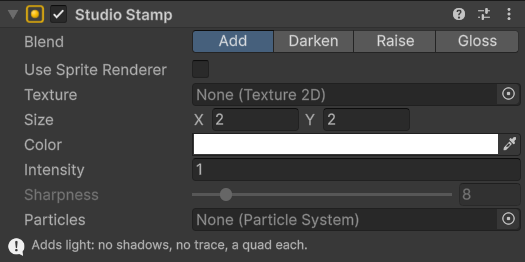
What it costs. One quad into the light map for each stamp, or for each particle of its Particle System. No shadows, no trace.
| Setting | Default | Range | What it does |
|---|---|---|---|
| Blend | Add | Add, Darken, Raise, Gloss | Add puts light in. Darken takes the light under it toward Color. Raise lifts the light to Color only where it is dimmer. Gloss brightens the light under it where it comes from above: the sheen of something wet or polished. |
| Use Sprite Renderer | Off | Takes the picture, its size, flip and colour from the Sprite Renderer on this object: the stamp has the sprite's shape and follows its animation. Texture and Size are not used then. | |
| Texture | None | The picture. Empty: a soft round pool. Its colours times Color are the light it gives; its alpha is how much of it there is, so the edges of a soft picture fade out. | |
| Size | 2, 2 | Width and height in world units, along this object's right and up axes; the object's scale multiplies them. With Particles, the size of the picture over each particle. | |
| Color | White | The colour of the light, or for Darken the colour the light under it turns toward: black takes it away. | |
| Intensity | 1 | 0 and up | How bright an Add or Raise stamp is; for Darken, how far it darkens, up to 1; for Gloss, how much brighter the sheen is than the light under it, at its brightest. |
| Sharpness | 8 | 1 to 64 | Gloss: how tight the sheen is. Low, a broad soft shine as on a damp floor; high, a small bright one right under each lamp, as on water or ice. |
| Particles | None | Stamps the picture at every live particle of this Particle System instead of at this object, at each particle's size, colour and turn: sparks and embers that light the ground for almost nothing. |
Gloss, the wet look. A stamp set to Gloss adds no light of its own: it brightens the light already under it where that light comes down from above, in the light's own colours. Lay one over a street after rain, a puddle (give it the puddle's sprite), a polished floor or ice: each lamp gets a sheen under it that fades away from the lamp, and neon signs leave their colours in it. The higher a light stands above the ground (its Height), the wider its sheen.
Studio Drop Shadow
A cheap shadow for a sprite: its own silhouette, drawn dark and sorted behind it. One quad, with no occluder and no trace, so a crowd, a field of grass or a hundred coins can each have one. It darkens whatever is drawn under it and does not stop at walls; what must cast true shadows wants a Studio Occluder.
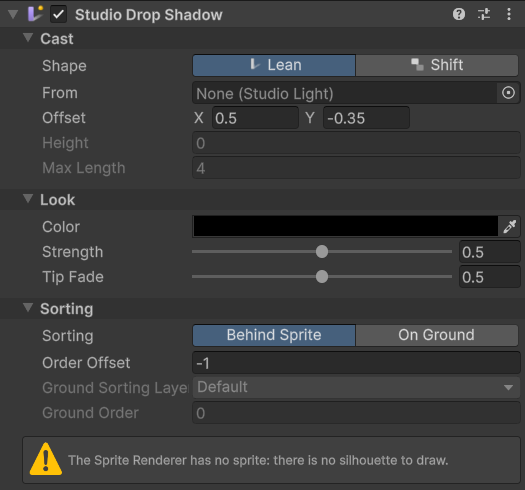
What it costs. One quad sorted with the sprites. No occluder, no trace: the cheapest shadow there is, for crowds, grass and pickups.
| Setting | Default | Range | What it does |
|---|---|---|---|
| Shape | Lean | Lean: the shadow stands on the sprite's foot and leans away from the light, for what stands on the ground. Shift: the whole silhouette is moved aside, for what flies above the ground or lies flat on it. | |
| From | None | The light the shadow falls away from. A Directional light gives its direction and, by its Elevation, its length. A Point light is followed: the shadow points away from it, grows as the lamp comes level with the object's Height, and fades out at the lamp's Range. Empty: the shadow lies at Offset. | |
| Offset | 0.5, -0.35 | With no light in From: where the top of a leaning shadow lies from its foot, or how far a shifted one is moved, in world units. | |
| Height | 0 | 0 and up | How tall the object stands (Lean) or how high it flies (Shift), in world units: with a light in From, what the shadow's length comes from. 0: as tall as the sprite is drawn. |
| Max Length | 4 | 0 and up | The longest the shadow gets, in world units. |
| Color | Black | The colour of the shadow. | |
| Strength | 0.5 | 0 to 1 | How dark the shadow is at its foot. |
| Tip Fade | 0.5 | 0 to 1 | How much a leaning shadow fades toward its far end: 0 the same all along, 1 gone at the tip. |
| Sorting | Behind Sprite | Behind Sprite, On Ground | Behind Sprite: on the sprite's own Sorting Layer, at its Order in Layer plus Order Offset. On Ground: on the Sorting Layer and at the Order in Layer set below. Use On Ground in a game that sorts its sprites by height or by Y: a shadow just behind a tall thing would otherwise be drawn over the top of a lower thing it falls across. |
| Order Offset | -1 | Behind Sprite: the shadow's Order in Layer, counted from the sprite's: -1 draws it just behind the sprite. | |
| Ground Sorting Layer | Default | On Ground: the Sorting Layer the shadow is drawn on. A layer the project does not have (a scene brought from another project) counts as Default. | |
| Ground Order | 0 | On Ground: the shadow's Order in Layer: above the floor, below everything that stands on it. |
Studio Day Night
Runs the Look and a sun over a day.
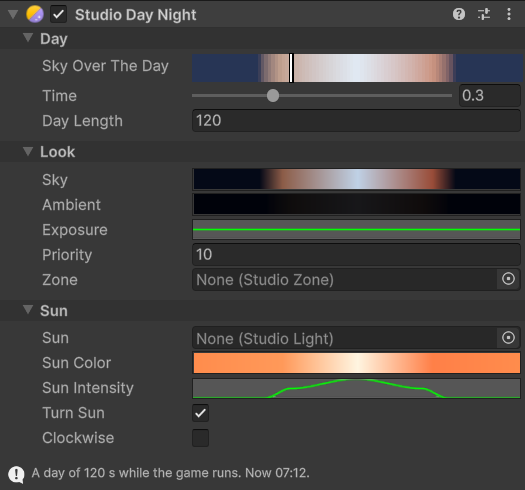
What it costs. While the day runs the sun turns, so its shadow is traced every frame instead of kept; a paused day costs nothing.
| Setting | Default | Range | What it does |
|---|---|---|---|
| Time | 0.3 | 0 to 1 | The time of day: 0 and 1 are midnight, 0.25 dawn, 0.5 noon, 0.75 dusk. |
| Day Length | 120 | 0 and up | Seconds a whole day takes while the game runs. 0 stops the clock; set Time from code instead. |
| Sky | See the component | The Look's Sky over the day: light arriving from every direction that nothing blocks. | |
| Ambient | See the component | The Look's Ambient over the day: the light every surface keeps. | |
| Exposure | See the component | The Look's Exposure over the day. | |
| Priority | 10 | The priority of the volume this writes the Look through. Higher wins over the scene's other volumes. | |
| Sun | None | A Directional Studio Light to drive as the sun. Leave empty for none. | |
| Sun Color | See the component | The sun's colour over the day. | |
| Sun Intensity | See the component | The sun's Intensity over the day: 0 at night switches it off. | |
| Turn Sun | On | Turns the sun once round over the day, so shadows swing from one side to the other. At noon it shines along the sun object's rotation as you set it at Time 0.5. | |
| Clockwise | Off | Turns the sun clockwise as seen from above, so shadows sweep the way a clock's hands do and a sundial reads like a clock. Off: counterclockwise. |
Studio Bake Area
A rectangle of the world whose light is baked.
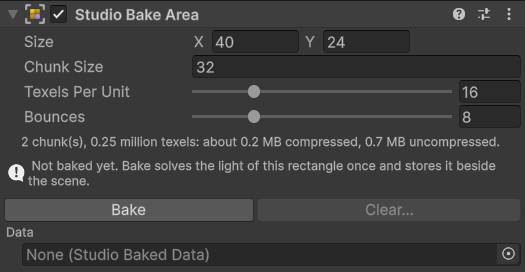
What it costs. Baking takes seconds in the editor; its memory is shown under the fields and follows Size and Texels Per Unit. At run time baked light is a texture read.
| Setting | Default | Range | What it does |
|---|---|---|---|
| Size | 40, 24 | Width and height of the baked rectangle in world units, centred on this object. | |
| Texels Per Unit | 16 | 2 to 64 | Texels of baked light per world unit. More keeps the edges of baked shadows crisper and takes more memory: memory grows with its square. |
| Chunk Size | 32 | 4 and up | The area is cut into square chunks of this many world units, each a texture of its own. Smaller chunks suit levels far larger than the screen. |
| Bounces | 8 | 1 to 32 | How many times light bounces during the bake. More fills deep corners; each costs bake time only. |
| Data | None | The baked light, made by the Bake button. Clear it to go back to none. |
Studio Zone
A rectangle of the world where light is solved. While a scene has zones, nothing is lit outside them: the light map stops at the zones in view, the bounced light solves nothing beyond them and every traced light stops at their edge. The lights and emitters a zone holds shine only while it is in view, and its lights only inside it: a torch on a room's wall solves nothing behind the wall, and the next room's lamps cost nothing until that room shows. A scene without zones is lit as before.
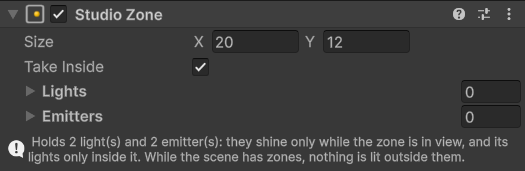
What it costs. A saving: the lights and emitters it holds cost nothing while the zone is out of view.
| Setting | Default | Range | What it does |
|---|---|---|---|
| Size | 20, 12 | Width and height of the zone in world units, centred on this object. | |
| Take Inside | On | Lights and emitters standing inside the rectangle belong to this zone, with those listed below. | |
| Lights | None | Lights that belong to this zone wherever they stand: they shine only while it is in view, and only inside it. | |
| Emitters | None | Emitters that belong to this zone wherever they stand: they glow only while it is in view. |
Studio Look
The look of the light for the whole scene; a Volume component.
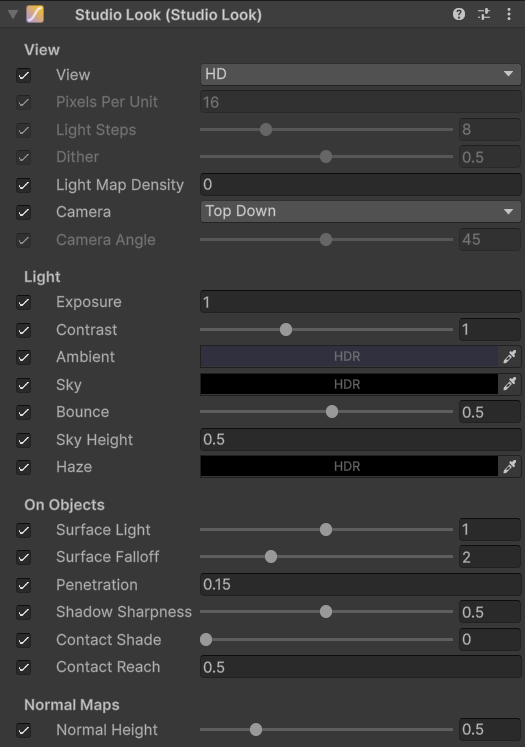
What it costs. Light Map Density and the View change the light map's size, the main cost. Haze other than black adds a pass; Contact Shade and Shadow Sharpness are part of the compose and cost little. The rest are numbers the solve already uses.
| Setting | Default | Range | What it does |
|---|---|---|---|
| View | HD | HD draws smooth light for painted or high-resolution sprites. Pixel Art gives every game pixel one value of light, on a grid that stays put in the world. | |
| Camera | Top-down | Top-down, Three-quarter, Side | Where the camera looks from. Top-down: straight down, Height rises toward the camera. Three-quarter: down at an angle, objects stand up the screen. Side: the scene's plane is the back wall, Height becomes Depth, and the sky lights from above. |
| Camera Angle | 45 | 20 to 70 | Three-quarter: how far the camera tilts down from the horizon, in degrees. |
| Pixels Per Unit | 16 | 1 and up | Pixel Art: game pixels per world unit, the same as the sprites' Pixels Per Unit. A Pixel Perfect Camera on the camera sets this by itself. |
| Light Map Density | 0 | 0 and up | HD: texels of the light map per world unit, fixed for this scene or area, so the light has the same detail and cost at any zoom. Never finer than the screen's pixels. 0 follows the screen: the level's Resolution, up to its Max Texels Per Unit. |
| Light Steps | 8 | 0 to 32 | Pixel Art: how many steps of brightness the light is drawn in. 0 keeps it smooth. |
| Dither | 0.5 | 0 to 1 | Pixel Art: how far a fixed checker pattern blends one step of light into the next. 0 leaves hard bands. |
| Normal Height | 0.5 | 0.1 to 2 | Normal maps: how high above the art light arrives from. Low rakes the light across and deepens the relief, high flattens it. |
| Exposure | 1 | 0 and up | Multiplies all light on screen. |
| Contrast | 1 | 0.5 to 2 | Shapes how light builds up to full brightness. Above 1 keeps dim light darker, for more contrast between lit and shaded; below 1 lifts it. Full light and the Ambient floor do not change. |
| Ambient | RGB 0.03, 0.03, 0.05 | Light every surface keeps, so shadows never go fully black. | |
| Sky | RGB 0, 0, 0 | Light arriving from every direction that nothing blocks. Enclosed rooms stay dark. | |
| Bounce | 0.5 | 0 to 0.95 | How much light surfaces pass on to their surroundings. |
| Sky Height | 0.5 | 0 and up | Height of the bounced and sky light above the scene, in world units. Objects lower than this (Studio Occluder: Height) do not block it, and their tops receive it like the ground. Traced lights use their own Height. |
| Surface Light | 1 | 0 to 2 | How strongly light shows on solid sprites. 1 is natural, 0 leaves them dark, 2 doubles it. Each occluder can scale this. |
| Surface Falloff | 2 | 0.5 to 6 | How quickly light dies inside solid sprites. Low values stay bright almost to the full depth, high values keep it near the edge. |
| Penetration | 0.15 | 0.01 and up | How far bounced light, sky light and cascade lights reach into solid sprites, in world units. Traced lights use their own Surface Reach. |
| Shadow Sharpness | 0.5 | 0 to 1 | Tightens the shadows of cascade lights where they start at the object that casts them. Shadows far from it stay soft. Traced lights are sharp there by themselves. |
| Haze | RGB 0, 0, 0 | Light seen in the air: wherever light passes, the air glows in this colour, so a beam through a doorway and the halo round a lantern show, not only the pool on the ground. Shadows cut through it. Black leaves the air clear and costs nothing. | |
| Contact Shade | 0 | 0 to 1 | Darkens the ground at the foot of objects that block light, most in corners, so walls stand on the floor instead of lying flat on it. 0 leaves the picture as it is and costs nothing. |
| Contact Reach | 0.5 | 0.05 and up | How far from an object its Contact Shade reaches, in world units. |
Studio Feature
The URP renderer feature.
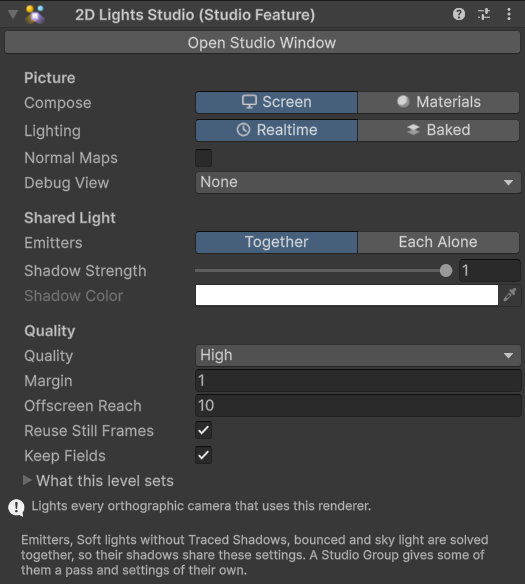
What it costs. Quality sets the light map's size and the rays, and with them most of the cost. Margin and Offscreen Reach widen the map. Normal Maps and a Debug View each add a texture the size of the map. Reuse Still Frames and Keep Fields are savings: leave them on. Baked and Hybrid lighting remove the cascades.
| Setting | Default | Range | What it does |
|---|---|---|---|
| Compose | Screen | Screen multiplies the finished picture by the light, with no material changes. Materials leaves the light to sprites using the Studio Sprite-Lit material. | |
| Normal Maps | Off | Keeps where the light comes from, so sprites using the Studio Sprite-Lit material are shaded by their normal maps: a secondary texture named _NormalMap. Works in the Materials compose mode. Costs one more texture the size of the light map. | |
| Lighting | Realtime | Realtime solves the light every frame. Hybrid reads the sky, bounce and emitters from the scene's Studio Bake Areas and draws traced lights marked Baked live with kept shadows: what moves casts shadows from every light. Baked reads every light marked Baked from the bake as well, the cheapest, but what moves casts no shadow from those. See Baking. Where no baked area covers the camera, Realtime is used. | |
| Emitters | Together | Together, Each Alone | Together: every Studio Emitter without a Studio Group is in the shared light, one pass for all, with the Shared Light shadows. Each Alone: each such emitter is solved in a pass of its own with its own shadow settings, which costs about as much as the shared light again for each. |
| Shared Shadow Strength | 1 | 0 to 1 | How dark the shadows of the shared light are: Studio Emitters, Soft lights without Traced Shadows, bounced light and sky light. 0 lets it shine through everything. |
| Shared Shadow Color | White | Colour | The colour of the shared light let into its shadows, as a Shadow Strength under 1 lets some in. |
| Debug View | None | Shows one stage of the solve in place of the picture, in the Game and Scene views: the light alone, the light of the shared cascades, what emits, what blocks, or the distance field. For finding out why a scene is lit the way it is. None costs nothing. | |
| Quality | High | How much detail the light is solved with. Higher looks better and costs more. Custom opens the settings below. | |
| Resolution | 0.5 | 0.125 to 1 | Light map resolution relative to the screen. |
| Ray Steps | 24 | 4 to 64 | Steps each cascade ray may take. Fewer are faster, but thin walls can leak. |
| Margin | 1 | 0 and up | World units of the scene kept in the light map outside the camera's view, for light bouncing in from just off screen. Limited on zoomed-in cameras. |
| Offscreen Reach | 10 | 0 and up | How far outside the view a light may be and still shine into it. Shadows out there come from the low-resolution far field. |
| Reuse Still Frames | On | When nothing the light depends on has changed for a second, keeps the light already solved instead of solving it again: a still frame costs almost nothing. Anything that moves or changes brings the live solve back at once. See Performance. | |
| Keep Fields | On | Keeps the distance fields (what stands in the light's way) from frame to frame while occluders, glass and the light map stay as they are, instead of building them every frame: the costliest work on weak graphics. Lamps may move freely; a moved occluder builds them again at once. Costs texture memory: about 16 bytes per light map texel, as much again for upright glass and for each set of lights with Shadows Only From or Ignore Occluders. | |
| Fixed Cascades | 6 | 0 to 6 | How many of the finest cascades trace four times the rays, so light cannot slip past occluders between probes. |
| Half Resolution Bounce | On | Computes bounced light at half the light map's resolution while every light traces its shadows, about a quarter of the cascade work. Bounced light is soft, so the loss is hard to see. A Soft light without Traced Shadows, or any Emitter, at a Cascade Quality above Low turns this off by itself: their own light is solved at the full resolution. | |
| Far Field Resolution | 512 | 128 to 1024 | Resolution of the coarse field that carries shadows from objects outside the light map. Its cost is tiny; very thin objects far off screen may need more. |
| Shadow Rays | 8 | 1 to 16 | Rays each soft traced shadow sends across its light. More give smoother wide shadows and cost more per light. |
| Smooth Upscale | On | Enlarges the light map with a smooth filter instead of a straight blend. Removes stairs and diamond patterns for a small cost. | |
| Max Texels Per Unit | 64 | 4 and up | The most light map texels per world unit. Zoomed in past it, the light keeps the detail it has there and its cost stops growing. A Studio Look's Light Map Density fixes the detail for a scene instead. |
Performance
- The cost follows the light map's size, which follows the screen and the Quality level, more than it follows the number of objects, with the two exceptions below. Lower Quality first.
- Emitters, bounce, sky and lights without Traced Shadows share one solve; each emitter or light adds one small draw. Many of them in one spot cost next to nothing; the same number spread over the whole screen costs more, part of it in the shadow rays of the soft traced lights that are on. The Light Lab's Reactor room shows it: its machine lets out up to 300 lights, with the frame time in the bar. Each traced light costs a draw over its range with rays of its own: keep ranges no larger than they need to be, and switch Traced Shadows off on lights whose shadows nobody looks at.
- A traced light that stands still keeps its shadows and reads them back instead of tracing again; only the part behind something that moves is traced again. A lamp that moves, or changes Range, Softness or Shadow Rays, pays full price while it changes and keeps its shadows again two frames after it stops. The kept shadows take up to ten light maps' worth of memory (about 20 MB at 1080p, High); lights not drawn for 120 frames give theirs back.
- Ignore Occluders costs nothing for emitters and lights in the shared light. A traced light with the list builds a field of its own without those occluders, like Shadows Only From: about a tenth of a millisecond for each such light.
- Each group, and each emitter solved alone, is a pass of its own: it draws the scene, builds a field and solves cascades again, about the shared light's cost each (2 to 3 ms at High on a mid-range desktop card, half that at Low). A group pays off when it gathers many traced lights; three small lamps cost less traced each by itself. Keep Emitters on Together unless an emitter needs shadows of its own, and put emitters that may share theirs into one group.
- Many small occluders spread across the screen are the dearest case. Most of their cost is in the shadow rays of soft traced lights: lower Shadow Rays, or trace fewer lights where the occluders are.
- Integrated graphics, in a browser build most of all, are the weak case: High is sized for a discrete graphics card. Start such devices from Low or Mobile, or leave Quality on Auto, and check the frame rate there before you settle.
- A browser compiles the light's shaders the first time it draws them, and on Windows that is slow: Chrome spent 12 to 18 seconds on them at the Light Lab's first visit on a desktop PC, and under 2 seconds on every visit after, from the browser's own cache. Lifted occluders (Lift above 0) use programs of their own, compiled the first time such an object is in view: about 7 seconds more. Show a loading screen over the first frame, and in a browser game either use Lift from the first scene or not at all. The Light Lab's browser build stands its trees on the ground for this reason.
- Baked and Hybrid lighting remove the cascades altogether. What remains is drawing the occluders, the distance field, and the live lights; in Hybrid the traced lights marked Baked are among them, at the cost of reading their kept shadows and tracing again only behind what moves.
- What stands still is kept. The distance fields are kept while no occluder or pane of glass changes (Keep Fields). A traced light that stands still, the sun among them, keeps its shadow and the colour glass leaves of its light, and traces again only behind what moves. So a room of still lamps with a character walking through it pays for the character, not for the room. A light that moves, turns or changes its shape is traced every frame; changing its colour or brightness (a Studio Flicker) costs nothing more.
- Still frames cost almost nothing. When nothing the light depends on has changed for a second (the camera, 2D Lights Studio's components, the transforms, sprites and colours of what they draw, the Look and the feature's settings), 2D Lights Studio keeps the light it solved instead of solving it again: in a still scene the frame's 2D Lights Studio cost falls from milliseconds to a fraction of one. Menus, pauses, turn-based games and idle screens gain the most. Anything that moves or changes brings the live solve back in the same frame; particles and sprites bent by bones count as changing all the time. A game that changes what 2D Lights Studio cannot see (a material's emission map, a shader property, a mesh edited in place) calls
StudioFeature.MarkChanged(), or unticks Reuse Still Frames. - With no 2D Lights Studio light, emitter or sky in a scene, the solve is skipped. With the feature unticked no pass runs at all.
- Normal maps, a debug view and each different Shadows Only From each add a texture the size of the light map.
Measured
The Light Lab's rooms in a Windows player at 1920 × 1080, Hybrid lighting, on the integrated graphics of a laptop (Intel UHD, Direct3D 11). Frame is the whole frame of the game; Light is the sum of 2D Lights Studio's passes on the GPU. "Still" is a room where only the character and its lamp move; "all moving" builds the distance fields again every frame, as a room full of moving walls would.
| Quality | Light map | Room | Frame, still | Light, still | Frame, all moving | Light, all moving |
|---|---|---|---|---|---|---|
| Low | 544 × 352 | Entrance, 5 lights | 11.3 ms (88 fps) | 3.6 ms | 14.4 ms (70 fps) | 6.0 ms |
| Low | 544 × 352 | Security, 6 lights | 11.9 ms (84 fps) | 3.8 ms | 18.6 ms (54 fps) | 8.7 ms |
| Low | 544 × 352 | Reactor, 6 lights | 12.8 ms (78 fps) | 4.8 ms | 15.2 ms (66 fps) | 6.8 ms |
| High | 1088 × 640 | Entrance, 5 lights | 39.5 ms (25 fps) | 32.0 ms | 47.1 ms (21 fps) | 38.5 ms |
| High | 1088 × 640 | Security, 6 lights | 39.2 ms (25 fps) | 31.8 ms | 53.5 ms (19 fps) | 45.2 ms |
So on integrated graphics Low holds 60 frames a second at 1080p with room to spare, and High does not: High is sized for a discrete graphics card, where the same rooms run in a few milliseconds. In the Low rows the still lamps cost under a millisecond together (their shadows are kept); the rest is the shared light's cascades.
Measure on the device you ship for: the Quality tab shows the light map's size and memory, and Auto steps down by itself where a device cannot keep up.
Limitations
- Orthographic cameras only, and URP only.
- Normal maps work in the Materials compose mode, not in Screen.
- Glass does not colour light that travels through the shared cascades.
- WebGL and OpenGL ES 3 allow a shader only 16 textures, and a traced light reads more. There, glass beyond the light map round the screen does not colour light (its shadows stay); and while the scene has lifted objects, lying glass does not colour the traced lights and lifted objects beyond the light map cast no shadow from them.
- Up to 255 different occluder Heights in view at once; heights closer than a thousandth of a unit count as one.
- The Unlit mask does not know drawing order: where a lit sprite overlaps an unlit one, that overlap is unlit too.
- The probe and the baker read the light map of the camera drawn last.
- Baked light keeps where it comes from, and shades normal maps as live light does. A bake made before 2D Lights Studio 1.0 baked directions has none until it is baked again.
- Studio Sight shows what is seen now. It does not remember what was explored, and it sees no farther than the light map reaches round the screen.
- An eye pressed right against a wall, closer than a light map texel or two, sees along that wall unevenly. Keep the Studio Sight a little off the walls, as a character's body does.
- Baked light matches live light across the picture, but not to the pixel: where a baked lamp is raised high above the scene, a few pixels by an occluder's edge can differ by a third of the brightness. Bake lamps that stand on the ground, or keep raised ones live.
- Contact Shade and Studio Sight belong to the picture, not to the light: a bake does not hold them, and probes do not read them.
- Near a light, a sprite's outline is its mesh or its physics shape, which Unity draws up to a few pixels outside the paint: a lamp begins to dim that much before it touches the picture. A sprite deformed by bones is measured as it stands unbent.
- Where lifted objects overlap, the place takes the span from the lowest underside to the highest top: a banner hanging under a chandelier closes the gap between them.
- Under a lifted object the light map holds the light on its top, which is what is seen from above: a probe there reads that, and a semi-transparent canopy shows the light of its top, not of the ground under it.
- Lifted objects do not take part in a light's or a Sight's lists of shadow layers: they cast for every light.
- A group or an emitter solved alone gives light, not bounced light of its own: its light bounces on the next frame through the shared light. It does not shade normal maps, and a Studio Bake does not hold it; it stays live.
- An emitter in a group or solved alone does not block the shared light or traced lights as an emitter with Height would: only its own pass sees it.
- Shadow Color reaches the lit ground and objects' tops, not the light that goes into an object (Light Depth).
- Distances to a tilemap are measured three cells round a point and on layer z 0; hexagonal and isometric cells are taken for their boxes.
- Footprint and Profile take a simple Sprite Renderer's mesh; a tiled or sliced sprite, a tilemap or another renderer blocks light with its picture (use Collider for those). A Profile reads up to two pieces a column, a standing one and a hanging one, from the sprite's mesh, not its alpha: Unity simplifies a Tight mesh, so cut-out shapes come out rounder than drawn.
- A Studio Surface is lit as its line: a face along its whole height as at its foot, a floor across its whole depth as along its edge. Things standing on that edge cover it, so a Floor is dark straight down under each of them; a floor with furniture along the wall reads better left in the plane, without a Surface.
- In the three-quarter view an object standing on its footprint is lit as one face on its foot, and the open ground round its foot as the ground beside it. The Screen compose mode does both for any sprite; the Materials mode lights the object itself (Studio Sprite-Lit, Studio GI), but a floor sprite there may show a faint rim round each foot.
- Isometric tilemaps are lit as their plane; walls drawn on them are not faces unless they carry a Studio Surface of their own.
Troubleshooting
Open Studio Window > Doctor first: it finds most of these and fixes many.
| What you see | Why, and what to do |
|---|---|
| Nothing is lit | The renderer the camera uses has no 2D Lights Studio feature, or it is unticked, or the camera is perspective. Setup tab, Make It Glow. |
| Everything is black | There is no light, emitter or sky, so only the Look's Ambient shows. Add a Studio Light, or raise Ambient or Sky. |
| Sprites are far too dark or lit twice | Unity 2D lights are also lighting the scene. Keep one white Global Light 2D at intensity 1, or none; the Doctor's Convert to 2D Lights Studio moves the scene's Light 2D over in one step. |
| A lamp goes out near a wall | Its centre reached an object as tall as it. Raise the light's Height above the object's, move it, or tick Shine Inside Objects. |
| A round sprite casts a square shadow when a light comes close | The sprite has a four-corner mesh (Full Rect, or smaller than 32 pixels) and no physics shape. Tick Generate Physics Shape in its import settings; the Doctor lists such occluders and has a button that does it. A sprite made by Sprite.Create takes its outline from Sprite.OverridePhysicsShape. |
| A sprite casts no shadow | It has no Studio Occluder, its renderer is hidden, or its alpha is below Alpha Cutoff. |
| An emitter gives no light | Source is Emission Map but the sprite has no secondary texture named _EmissionMap; or it is small and needs more Intensity. |
| Materials mode: sprites stay unlit | Only sprites with the Studio Sprite-Lit material are lit there. Convert them, or set Compose to Screen. |
| Lighting is Baked but the light is live | No baked area covers the camera. Bake, or check the area's size. The Console says so once. |
| Pixel art light looks soft | The Look's View is HD. Set it to Pixel Art and Pixels Per Unit to your sprites'. |
| The Console says 2D Lights Studio is off | The device cannot render to floating-point textures. The picture is drawn fully lit; check StudioFeature.IsSupported to react. |
Demo
The Light Lab
4ssets/2D Lights Studio/Demo/LightLab/LightLab.unity is a small game in eight rooms. You roll a probe through a lab drawn in pencil, push crates, drag coloured glass, pull levers, light a sensor and bring three light cores to a reactor. Every light, shadow, glass colour and glow in it is 2D Lights Studio's. Free mode opens every room at once.
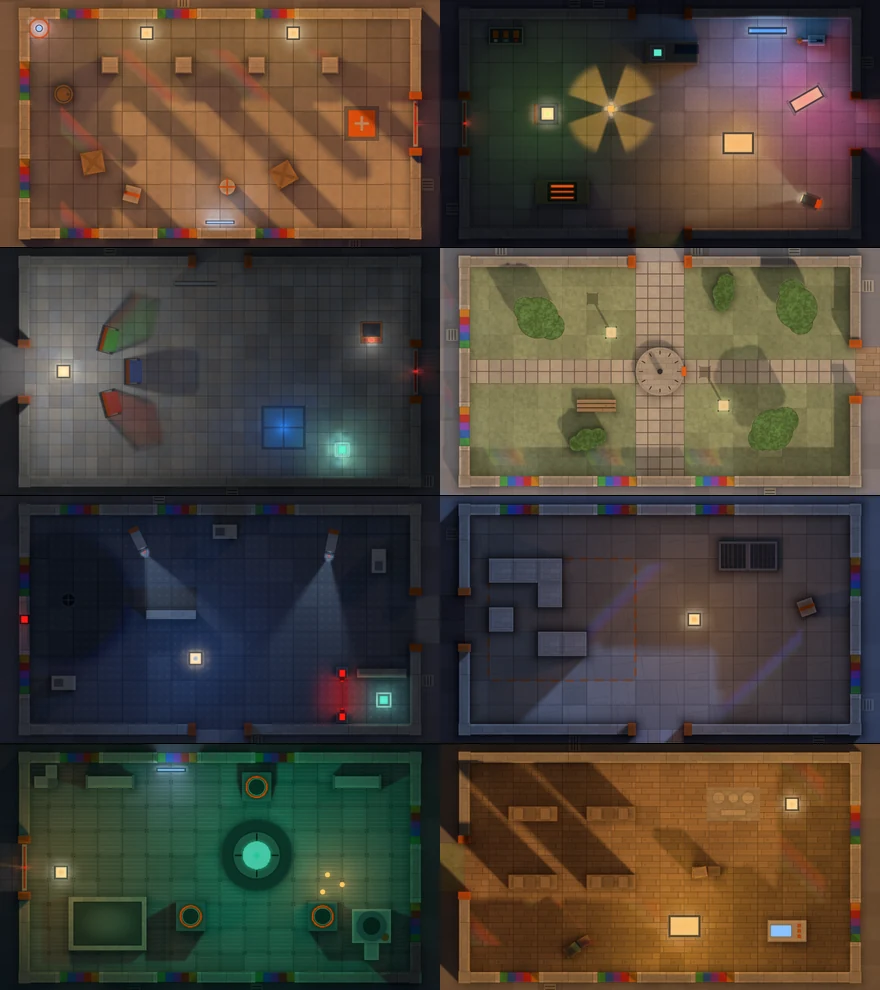
Moods. Each room has its own evening, set in its Studio Look and its lamps: a low sun through the stained glass of the Entrance, moonlight against warm lamps in the Wall Workshop, the reactor's teal glow, a dark Security room where only lamps, lasers and camera beams give light. The glowing parts (screens, hot metal, cores, indicators) are Studio Emitters strong enough to colour the floor around them.
Controls. WASD or the arrows roll the probe, F switches its own light, E uses what is near, picks up a core or puts it down. The mouse drags loose things and clicks open the Inspector (Tab): the real fields of the clicked object's 2D Lights Studio components, which you can change while it runs. Lighting (L) opens the room's lighting: its sun (direction, elevation, intensity, colour, shadow softness; in the Courtyard the time of day, which drives the sun through Studio Day Night) and every setting of its Studio Look, from View and Light Steps to Exposure, Ambient, Sky, Bounce, Haze and Contact Shade; they change a copy of the room's Look, and Reset puts the room back. Pointing at a field shows what it does under the fields, and a field that changes nothing as things stand is greyed and says why: Dither outside the Pixel Art view, the Courtyard's Exposure, Ambient and Sky (Studio Day Night drives them), or Sky and Bounce in a room whose light is baked while Lighting is Hybrid or Baked (Settings switches it to Realtime). Q turns all of 2D Lights Studio off and on, and holding C shows the room without it for as long as you hold it: the same lab in plain sprites, so you see what the lighting does. M opens the map and the Codex of what each room shows; Esc the settings (quality, compose, the room's Look). A link ending in ?room=<n> opens that room.
In a browser. A WebGL build of the lab starts at the Low quality level. A browser compiles a shader program the first time a game asks for it, and once more at the program's first draw, with the page frozen each time: the light's big programs take seconds, in the first room and again at the first lifted object (the passes that meet Lift are programs of their own). A build for Windows or Android has no such pause. A page can spare the player the wait, and the demo's page on the 4ssets site does: while the game is still loading it hands the browser every program of the build on a canvas of its own, with KHR_parallel_shader_compile so they are compiled off the page's thread, then draws one pixel with each into the kinds of target the game uses, and starts the game when that is done. The game then finds every program in the browser's cache. Measured in Chrome on Windows with the Courtyard as the first room: stops of 9.6, 8.2 and 3.2 seconds in the game without it, none over half a second with it, for some ten seconds more of loading on a first visit. See Limitations for what a browser cannot do.
Sound. Every sound is made in code (Demo/Scripts/Lab/LabSounds.cs), no audio files: soft low tones and filtered noise for clicks, doors, pickups, alarms and knocks, a rumble as the probe rolls, a hum or wind in each room.
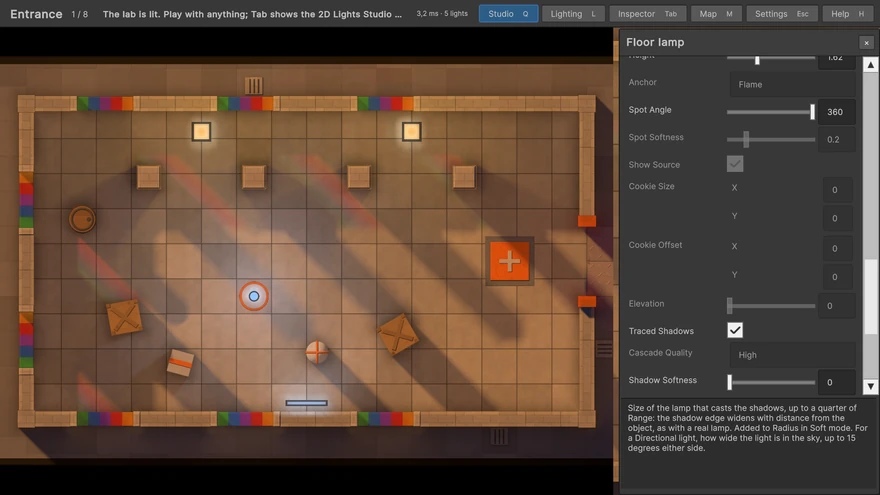
| # | Room | What you do | 2D Lights Studio shown |
|---|---|---|---|
| 1 | Entrance | Soft shadows of two floor lamps and four columns; a crate pushed onto the plate opens the door. | Soft Shadows, Occluder Height, Contact Shade, moving occluders |
| 2 | Lamp Workshop | Every shape of light; a fan turning over a lamp; hot metal and screens that light the bench. | Line, Rectangle, Ellipse, Spot, Cookie, Flicker (Faulty), Emitters from emission maps |
| 3 | Glass | Coloured glass on stands you drag in front of a lamp; a light sensor opens the reactor door. | Studio Glass (Sprite Colors, Upright, Lying), Studio Probe |
| 4 | Courtyard | A sundial turns the day: the sun, the sky and the ambient light move together, and the lamp posts' shadows turn with the sun. | Directional light with Elevation, Studio Day Night, Bounce, Studio Drop Shadow |
| 5 | Security | Cameras and a laser see light: the probe's lamp, and the glow of a core it carries. Switch the lamp off to pass; lay the shadow orb on the laser and bring the core out through its dark. | Spot cones that turn with their cameras, Line light, Flicker (Pulse), negative light |
| 6 | Wall Workshop | Click the floor to build or clear wall blocks; a floor grate casts its bars. | Occluders at runtime, Alpha Cutoff |
| 7 | Reactor | Three cores start the reactor; a machine lets out up to 300 lights. | Many lights, emitters, bounce of a strong light |
| 8 | Archive | Reliefs in the floor and a desk that changes the room's mood through the package's Looks. | Normal maps, Studio Look, Rectangle light |
Each room is one screen, seen from straight above. Its art is drawn by code: every object is a list of simple shapes, drawn from above into a sprite with a normal map and, where it glows, an emission map; floors and walls are tiles one unit across. Their footprints on the floor are their colliders. The game's scripts are in Demo/Scripts/Lab.
How it is set up for speed. Each room has a Studio Zone over its frame and a Bake Area: the still lamps are marked Baked. The game runs in Hybrid; Settings → Lighting switches to Realtime or Baked to compare. In Hybrid the sky, the bounce and the still glows come from the bake, the baked lamps are drawn live with their shadows kept, and everything that moves — the probe and its glowing ring, the lamp cart, the cores, the fan's cookie, the flashes, the sparks — stays live; the frame time is in the bar. Reuse Still Frames is on. The game also turns on the Materials compose and normal maps for as long as it runs, and puts the feature back as it was when you stop. In a browser (a WebGL build) it starts at the Low quality level, so it runs well on a weak machine at once; Settings → Quality raises it. Sprites sit on three sorting layers, Lab Floor, Lab World and Lab Overlay; in the world, the Order in Layer comes from the height of the edge with which a sprite overlaps its neighbours (a box's or a wall's top, but a ball's equator, so the probe rolls under a 0.6 m crate's edge and over a floor plate), 32 steps a centimetre; between things of one height the one nearer the room's centre is drawn over the farther one, since the camera's perspective tucks the farther one's side under the nearer one's top, which keeps the pieces of one wall seamless. What the probe carries is held at 1.15 m. In a project without these layers the scene still draws in the same order.
The demo needs nothing from your project settings: every sprite is on the Default Sorting Layer and sorted by its Order in Layer alone (the floor lowest, then what is painted on it, shadows lying on the ground, and everything that stands by the height of its top), and it adds no tags or layers.
The HUD is UI Toolkit, styled like the Unity 6 Inspector. The demo reads input from the Input System package where it is installed and from the old Input class where that is.
The game's scripts are in Demo/Scripts/Lab. The whole Demo folder can be deleted.
Removing 2D Lights Studio
- If you converted materials, open Tools > 2D Lights Studio > Material Converter and press Revert Open Scenes in each scene, then Delete Unused Copies.
- Remove the 2D Lights Studio feature from your renderer asset.
- Delete the
<Scene>_LightsStudiofolders of baked light, if you baked. - Delete
Assets/4ssets/2DLightsStudio. 2D Lights Studio components left on objects show as missing scripts and can be removed.
Support and license
Publisher: 4ssets, part of UnityCraft.org. Support, updates and other assets: unitycraft.org/4ssets.
2D Lights Studio is a paid Unity Asset Store product under the Asset Store EULA; see License.txt. It contains no third-party content; see Third-Party Notices.txt.