 2D Lights Studio Quick Start
From import to a lit scene in about a minute. Version 1.0.0.
You need
| Unity | 6000.0 or newer |
| Pipeline | URP 17 or newer, with the 2D Renderer or the Universal Renderer |
| Camera | Orthographic |
Light a scene
- Open a 2D scene of your own, with a few sprites in it.
- Open Tools > 2D Lights Studio > Studio Window.
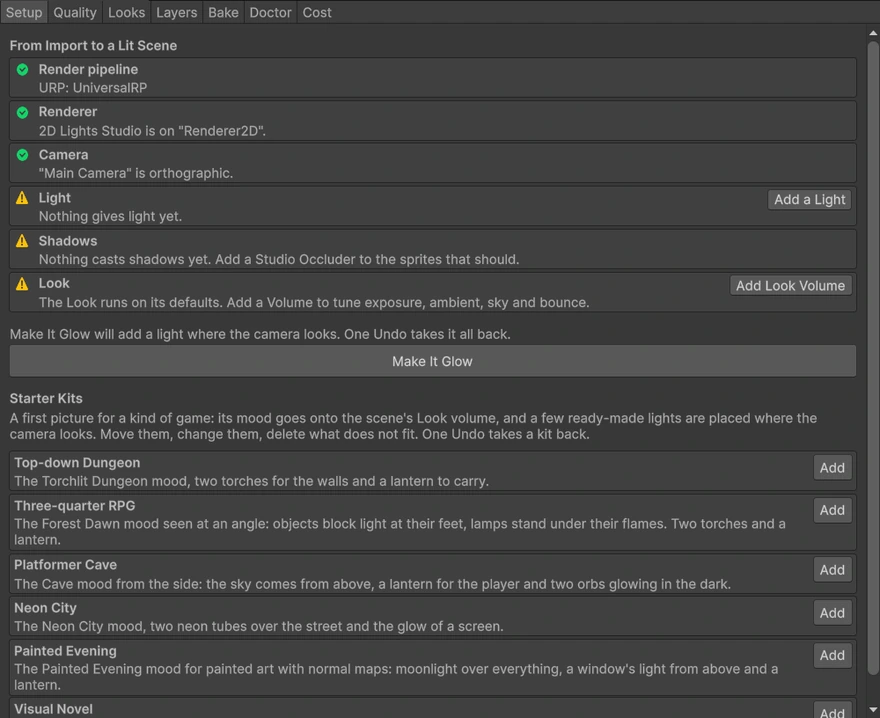
- On the Setup tab, press Make It Glow. It tells you first what it will do: add 2D Lights Studio to your renderer, put a light where the camera looks, and make occluders of the objects that already have a collider or a Shadow Caster 2D. One Undo takes it all back.
- Drag the new Studio Light about in the Scene view. The scene is lit and things cast soft shadows.
Then
- Add Studio Occluder to any sprite that should cast a shadow, and Studio Light wherever you want more light. Both are under
Component > 2D Lights Studio. - Make a sprite glow with Studio Emitter, and a window colour the light with Studio Glass.
- Pick a mood on the Looks tab, or add a Volume with the Studio Look and set Ambient, Sky, Bounce and Exposure. For pixel art set its View to Pixel Art. Seen at an angle or from the side, set its Camera to Three-quarter or Side (a starter kit does it).
- If something looks wrong, open the Doctor tab: it says what and offers a fix.
To play with it, open
4ssets/2D Lights Studio/Demo/LightLab/LightLab.unity and press Play: a small game in eight rooms where every light, shadow and glass colour is 2D Lights Studio's; click anything and Tab shows its 2D Lights Studio settings.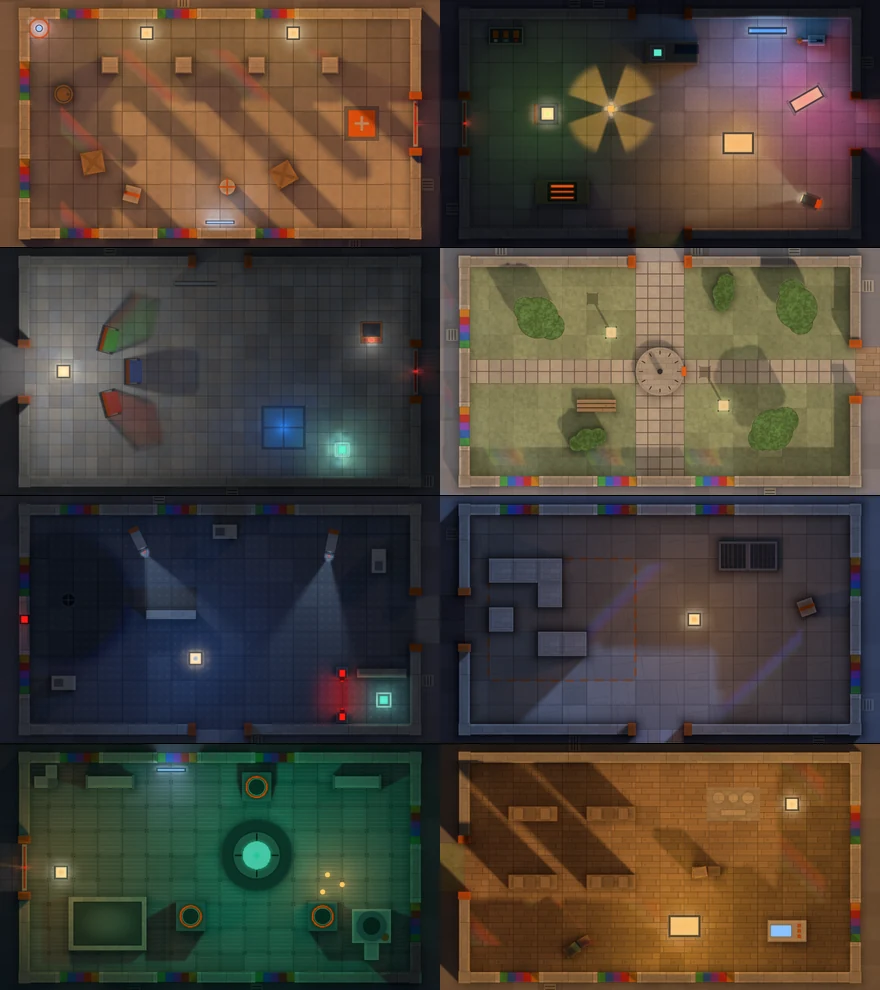
The full guide is in Documentation.html, beside this file.